BFFless Backend Authorization and Role Management
Managing who can see and do what inside your BFFless backend is a critical part of running any project. BFFless ships with a two-level permission system that gives you fine-grained control over access: global roles for system-wide access and project roles for per-project permissions. This post walks through every tier of authorization — from full admin privileges down to guest-level website authentication — and shows how each one works in practice.
Understanding the Two Layers of Roles
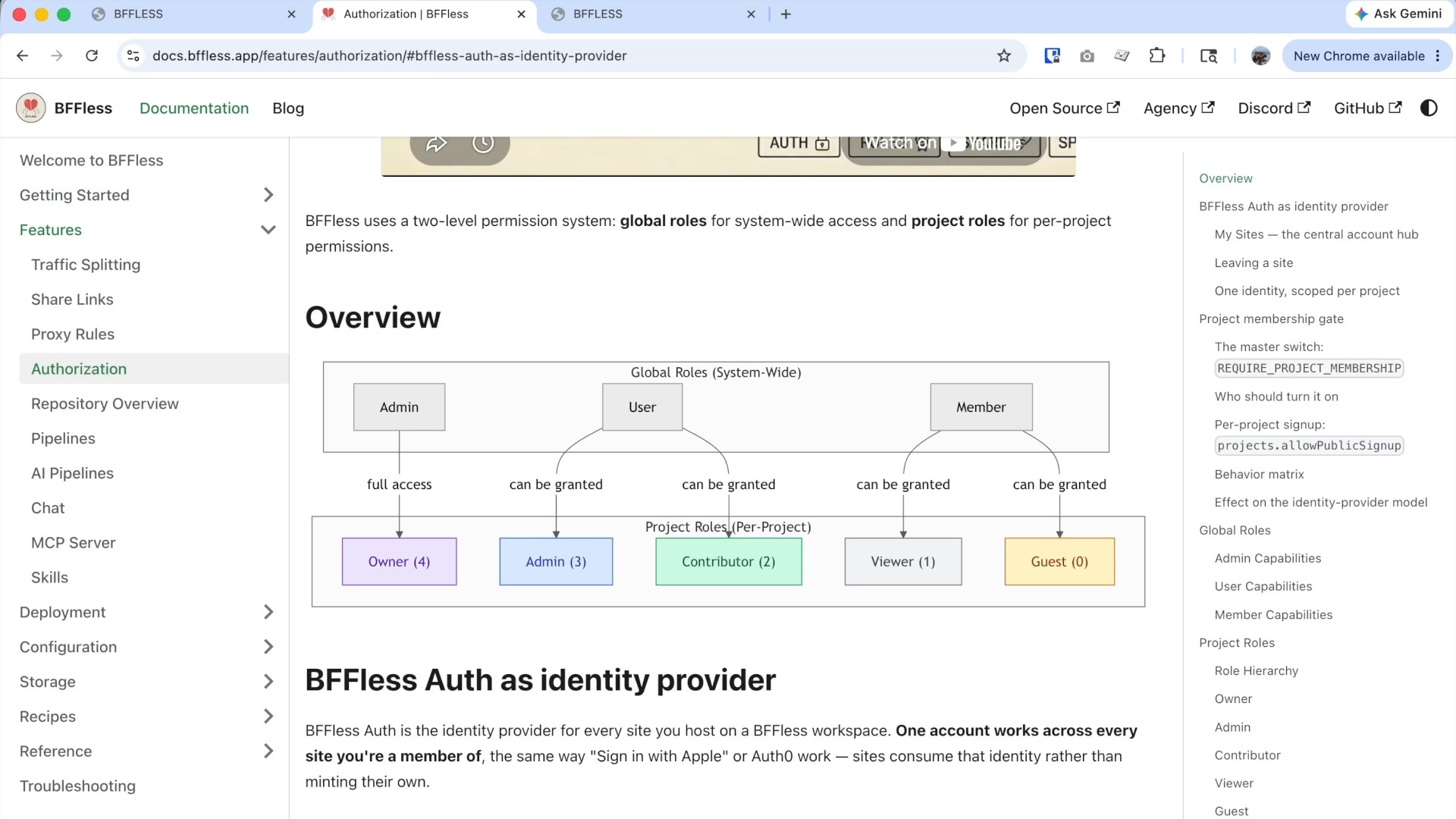
At a high level, BFFless organizes roles into two layers:
- Global roles — These apply system-wide. A user with a global admin role automatically has admin access to every project created inside the BFFless backend.
- Project-level roles — These are scoped to a single project. You can grant someone admin, contributor, viewer, or guest access on one project without giving them any access to another.
This separation is what makes the system flexible. You might want a core team member to manage everything globally, while an outside collaborator only needs access to a single repository.
Global Admin: Full Access Everywhere
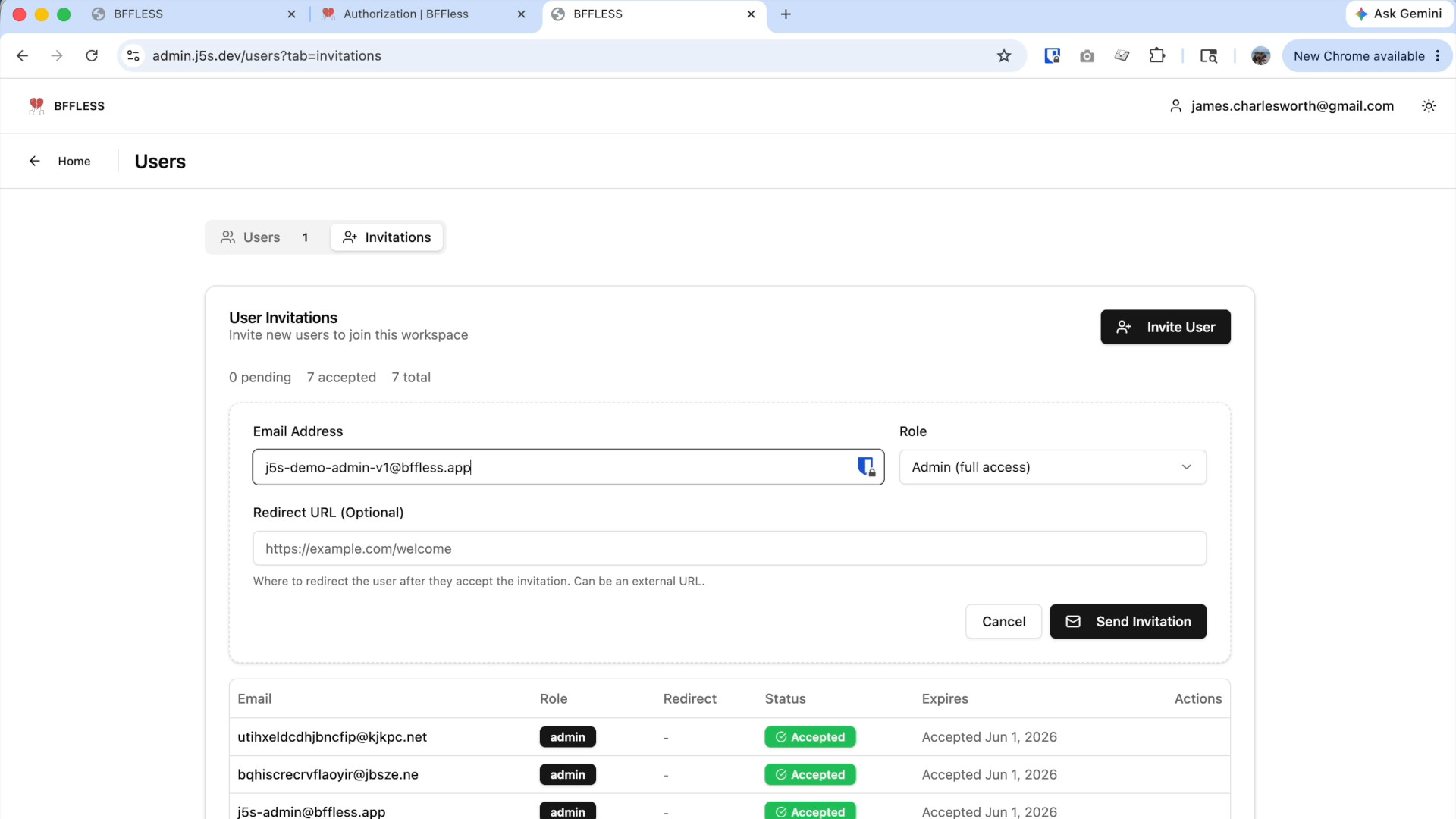
The highest level of access in BFFless is the global Admin role. To demonstrate, you can navigate to the Invitations tab in the backend and invite a new user. When creating the invitation, you select the "Admin (full access)" role and send the invitation.
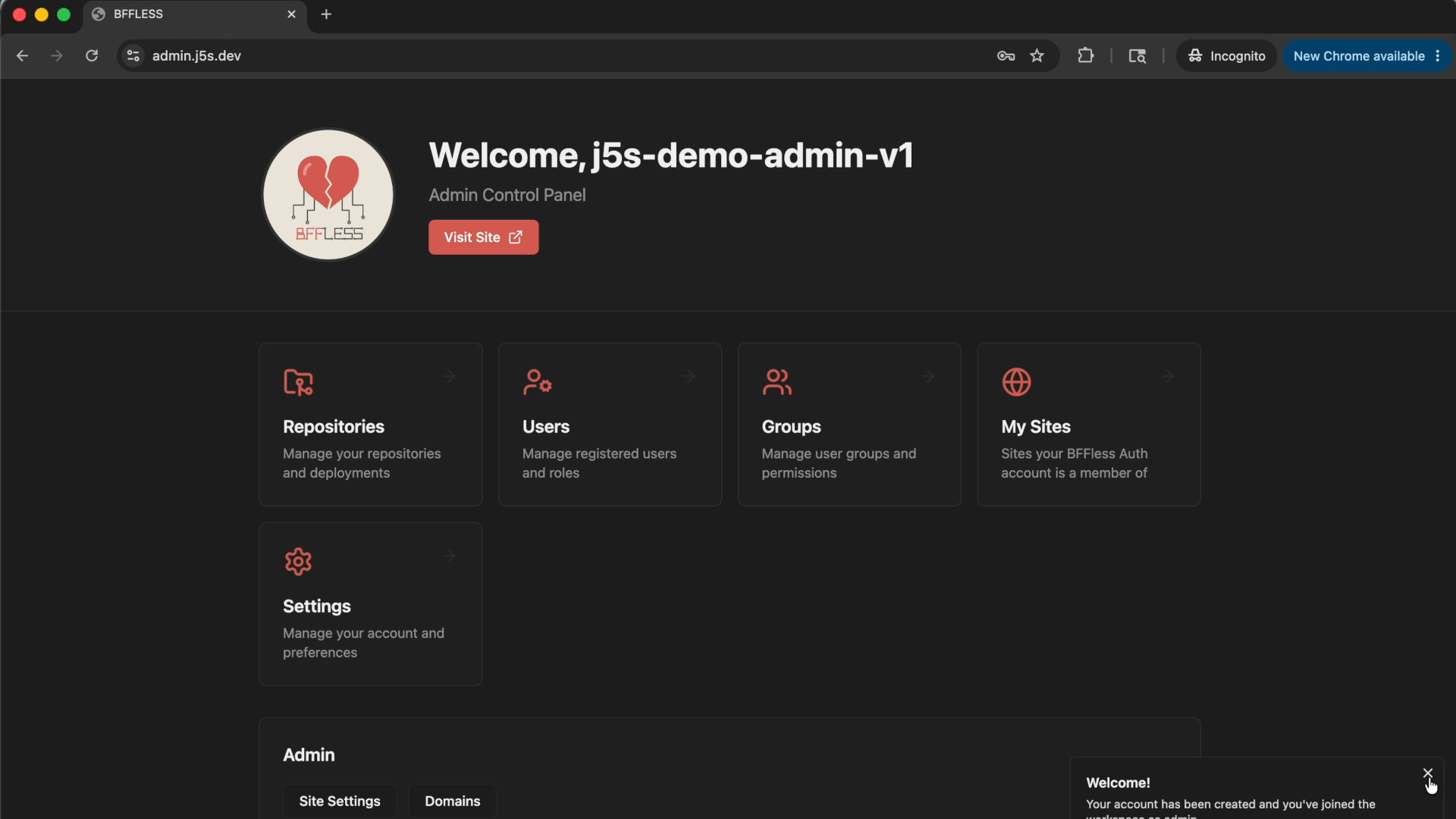
The invited user receives an email with a validation link. After clicking through and creating their account, they land in the BFFless admin control panel with full access: they can see all projects, access settings, create new repositories, and destroy existing ones. This is the most powerful role — it grants unrestricted control over the entire BFFless instance.
Project-Level Admin: Scoped Power
Global admin access is powerful, but often you want to limit someone's admin capabilities to a single project. This is where project-level roles come in.
To set this up, you first invite a user with a basic User role (not admin). When that user logs in, they see an empty dashboard — no repositories, no settings. They have user-level access to the system but haven't been granted access to any specific project yet.
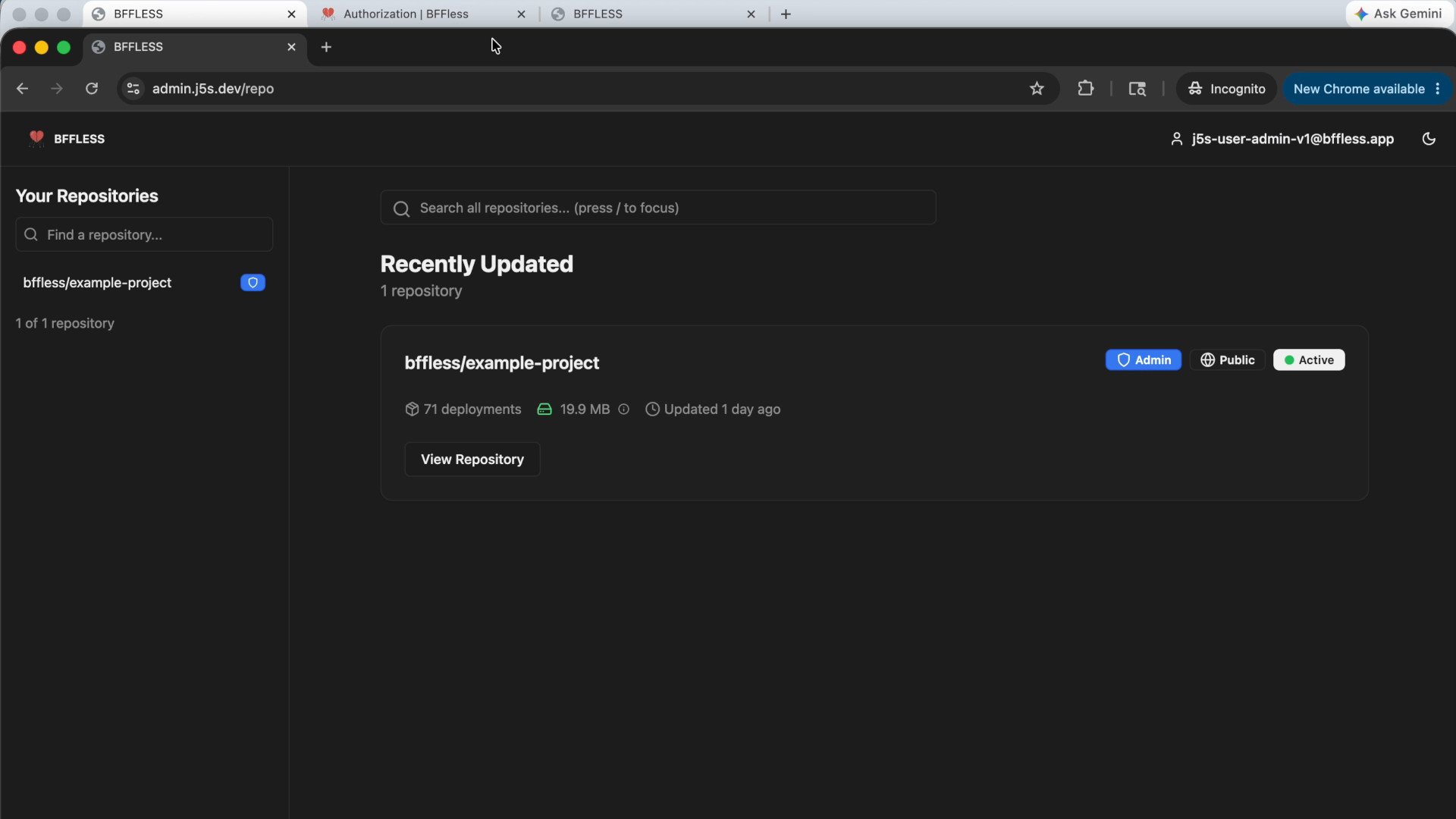
Next, as a global admin, you navigate to the specific project's Settings → Members page and add the new user as a project member with the Admin role. Once added, the user can refresh their dashboard and see the repository. They now have full admin capabilities — but only on that one project.
To prove the scoping works, if the global admin creates a second repository (say, "foo bar"), the project-scoped admin still only sees the single project they were granted access to. The second repository remains invisible to them.
Contributor Role: Edit Without Full Control
Below admin sits the Contributor role. Contributors can perform many of the same tasks as admins — deploying, browsing files, configuring traffic — but they lack certain higher-level permissions like managing settings, granting permissions, deleting the project, or transferring ownership.
Rather than walking through a separate invitation flow (the process is identical to the admin example above), the BFFless documentation includes a handy permissions matrix that lays out exactly which actions each role can perform.
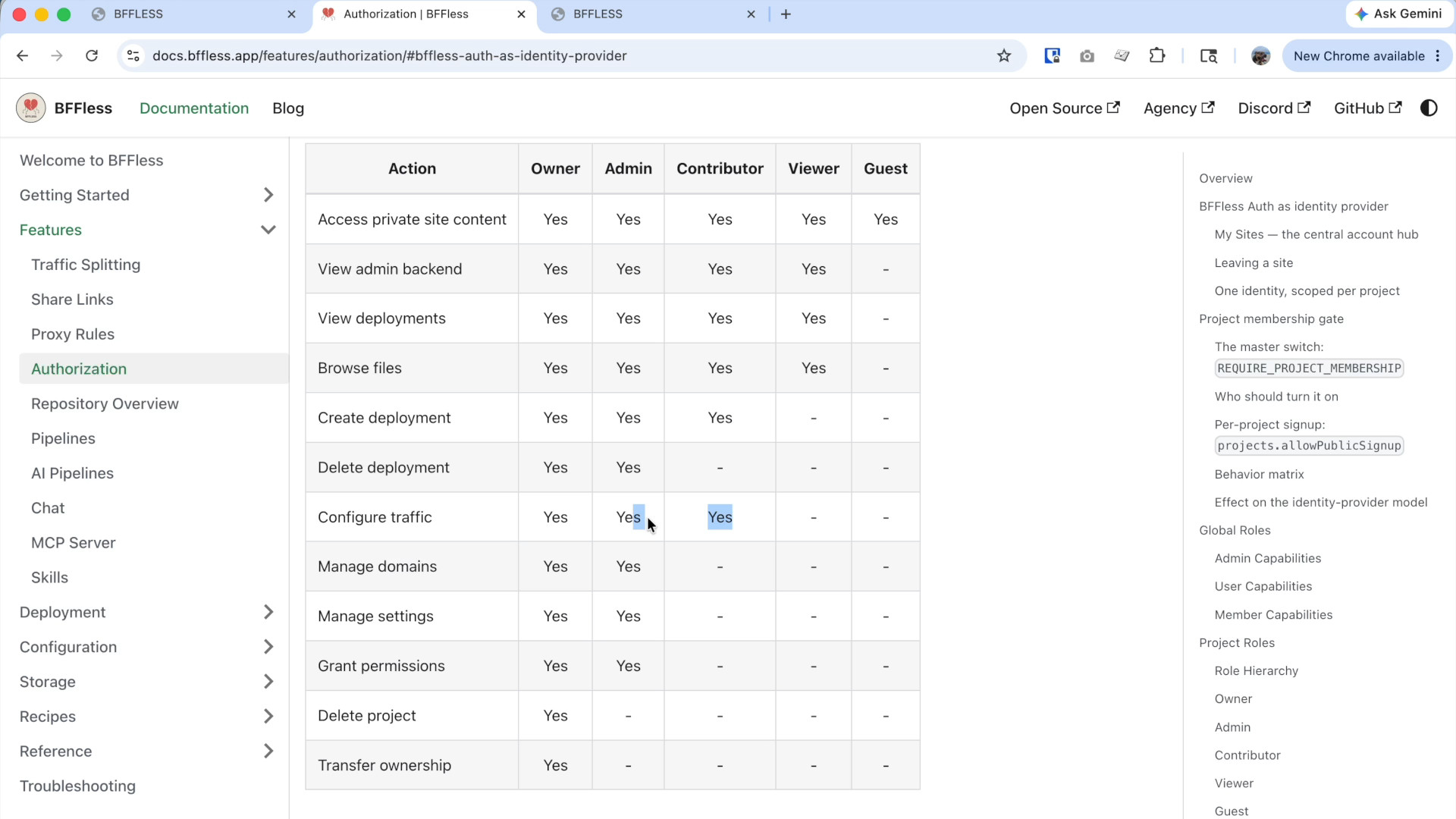
The matrix makes it easy to compare roles at a glance. If you need someone who can deploy and manage content but shouldn't be able to change project settings or manage other members, Contributor is the right fit.
Viewer Role: Read-Only Exploration
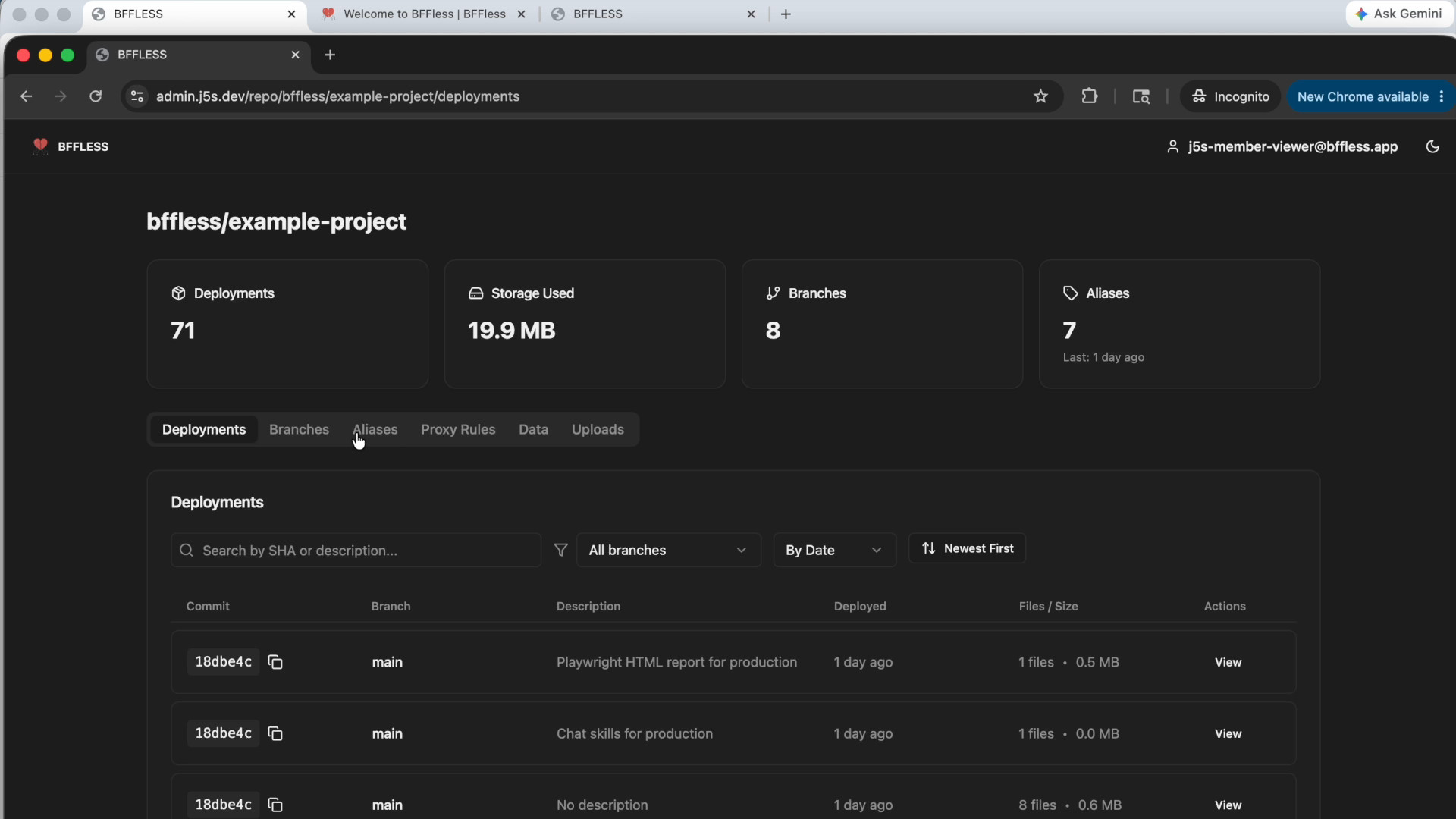
The Viewer role is the first of the two "member" tiers, and it's designed for read-only access. Viewers can log in to the BFFless backend and see the repository — browsing deployments, exploring file histories, and reviewing different versions — but they cannot change anything.
To set up a viewer, you invite a user with the Member (view only) global role. After the user creates their account, their dashboard is empty because they haven't been added to any project yet. You then go to the project's Settings → Members and add them with the Viewer – Read only admin role.
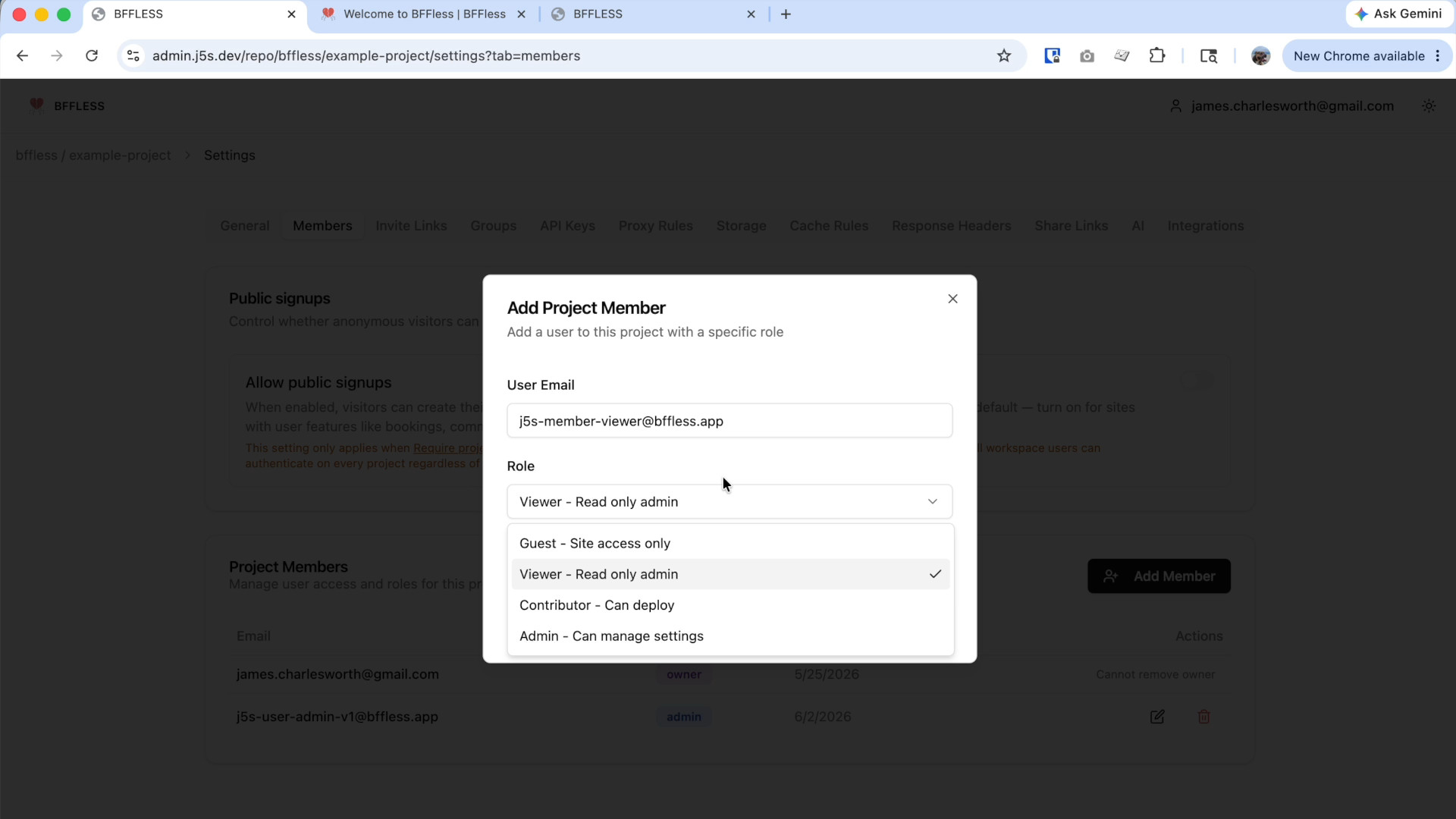
Once added, the viewer can access the project dashboard, see deployment history, browse branches, and even drill into individual commits and files. This is particularly useful for non-technical stakeholders — designers reviewing visual changes, managers tracking deployment history, or clients exploring what's been shipped — without any risk of accidental edits.
Guest Role: Website Authentication Without Backend Access
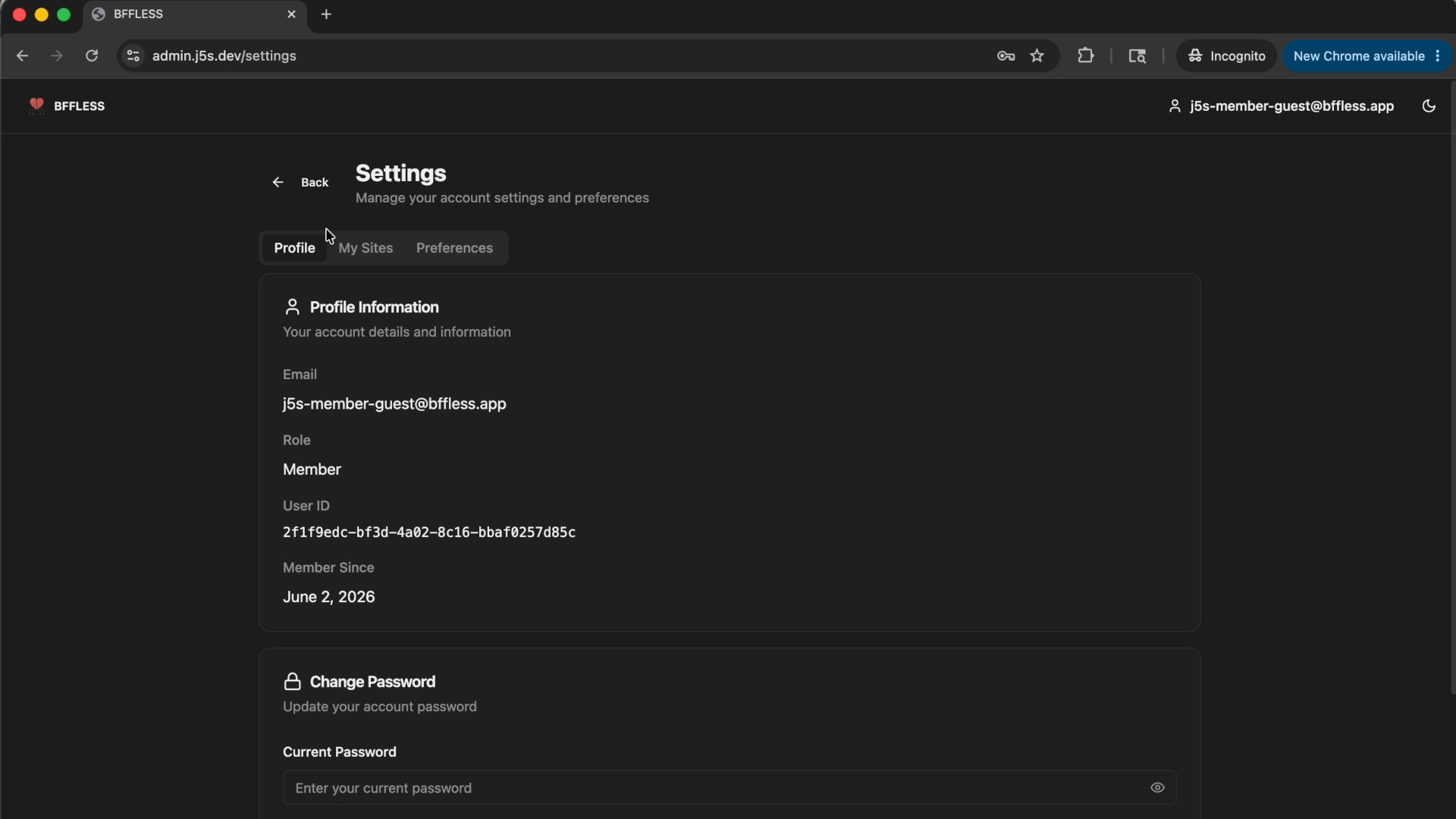
The Guest role is the most restricted tier, and it serves a fundamentally different purpose than the others. Guests can authenticate — they can log in, manage their profile, and change their password — but they have zero visibility into any repositories or backend settings.
This role is designed for end users of your website. Imagine you're building a site on BFFless and you want visitors to be able to create accounts and log in, but you don't want them anywhere near your deployment infrastructure. The guest role makes this possible. Users sign up, authenticate through BFFless's identity provider, and then you handle fine-grained authorization on your own terms using schemas and your own application logic.
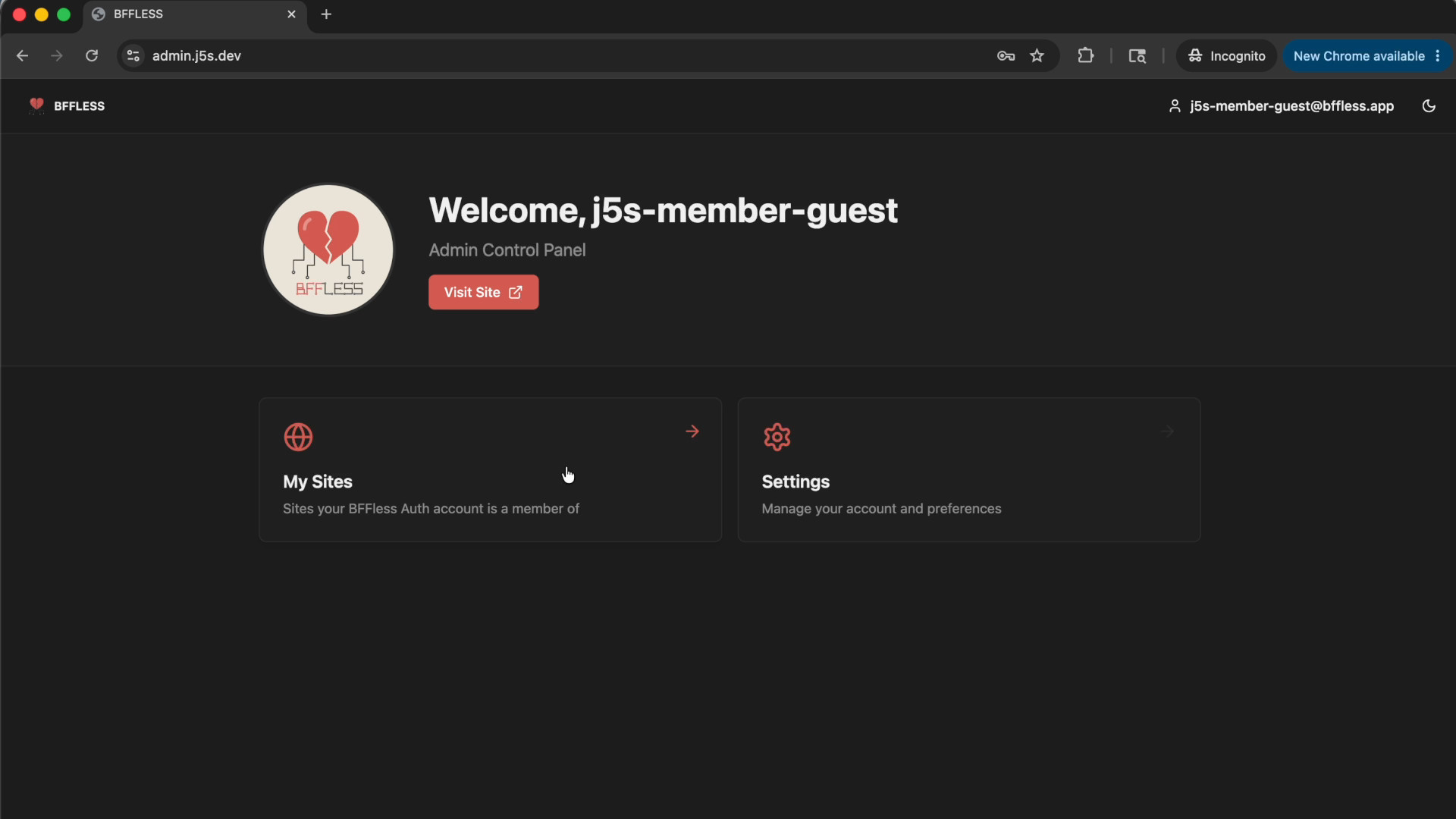
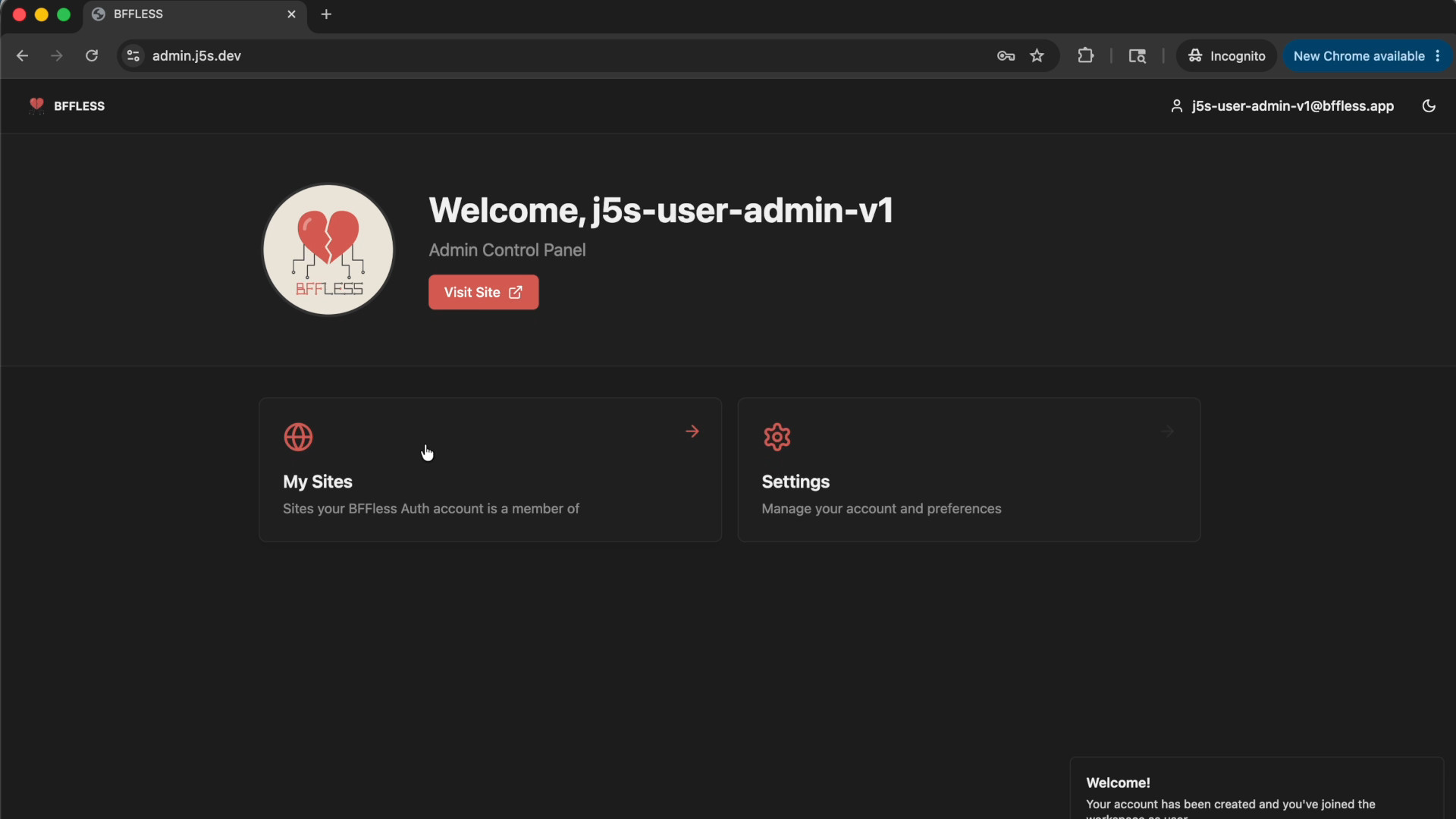
After inviting a user with the Member – Guest role and having them create an account, their admin control panel shows only two options: My Sites and Settings. They can view sites they're a member of and manage their personal profile, but the Repositories section is completely absent. This makes the guest role ideal for scenarios where you want a login portal on your public-facing site — users authenticate through BFFless, and you serve them personalized content based on your own data, all without exposing any backend functionality.
Wrapping Up
BFFless gives you a clean, layered authorization model that scales from solo projects to multi-team setups:
- Admin — Full control, either globally or scoped to a project
- Contributor — Can deploy and edit, but can't manage settings or permissions
- Viewer — Read-only access to explore repositories and deployment history
- Guest — Can authenticate but has no backend visibility; ideal for website end users
Global roles cascade across every project in your BFFless instance, while project-level roles let you grant access to individual repositories without affecting anything else. The combination of the two gives you the flexibility to model nearly any team structure or access pattern.
In a follow-up post, the topic of building website-level authentication for guest users — allowing them to log in on your actual site and implementing custom access control — will be covered in more detail.