Walkthrough of a Custom AI Video Editing App
Editing video tutorials can be an incredibly time-consuming process. Between cutting out dead space, removing coughs, and editing out mistakes or redos, post-production often takes longer than recording the video itself. To solve this, I created a custom open-source application called Studio, designed to automate these tedious tasks.
In this walkthrough, we'll take a raw, unedited 19-minute YouTube tutorial about authentication and run it through the Studio app to see just how much fluff we can automatically trim away.
Importing and Prepping the Footage
The process begins by creating a new project and dropping the local video file into the app. During the initial prep step, Studio uploads the video to a Google Cloud bucket, extracts the audio track, and transcribes that audio into text.
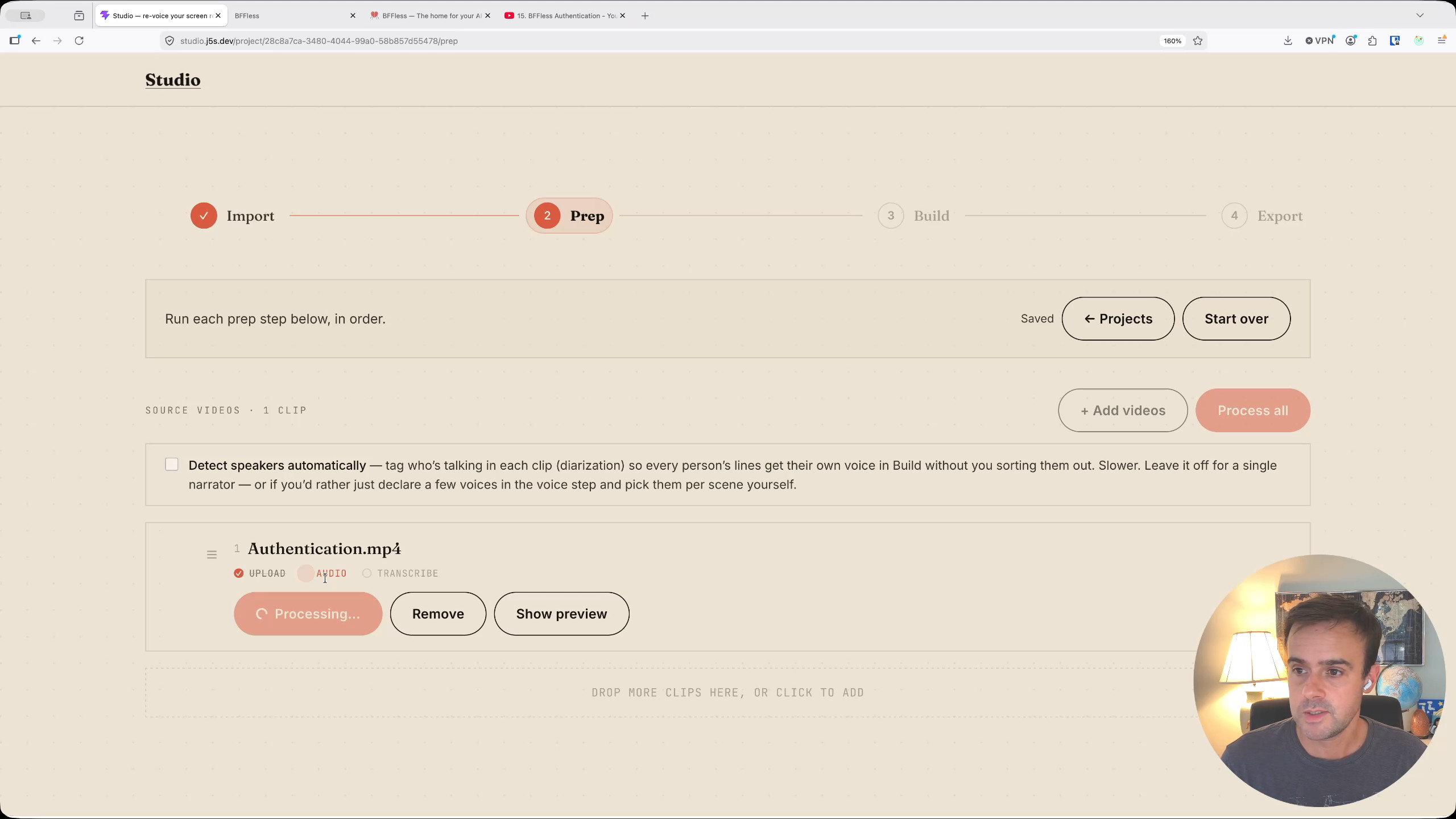
Once the transcription is complete, we have the original 19-minute video, a separate audio asset, and a full text transcript. This transcript is incredibly valuable on its own—it can be repurposed later for documentation, blog posts, and more.
Next, the app generates a high-level visual overview of the video by cutting out thumbnail images. For a 20-minute video, it extracts about 120 frames spaced roughly 10 seconds apart, uploading them to a GCS bucket. These contact sheets provide crucial visual context—alongside the audio and text—for the AI to use when making editing decisions.
Voice Cloning and the AI Director
Because the app will be cutting and rearranging the script, it needs a way to bridge gaps seamlessly. Studio allows you to clone your voice using preset voices from Replicate. After testing a default voice that sounded a bit too monotone, I opted for a pre-saved sample of my own voice to ensure the generated narration sounds natural across the newly cut scenes.
With the voice configured, the project is handed off to what I call the "AI Director." I provide a high-level prompt: Keep the original script, but cut it down as much as possible, trying to get to around eight minutes. Cut out any dead space, redos, coughing, or unnecessary content.
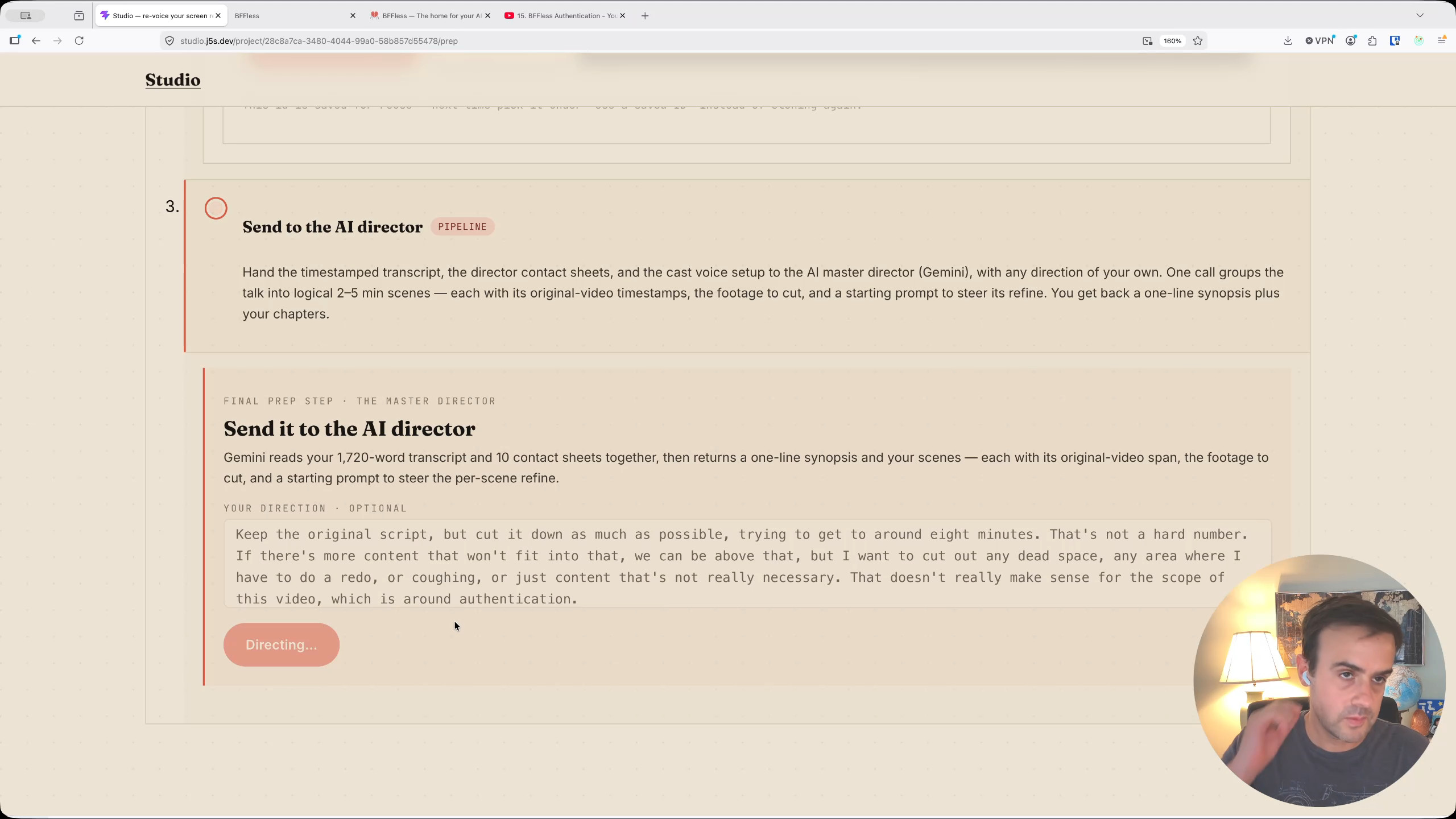
This prompt, along with the entire transcript, timestamps, and signed URLs for the contact sheets, is sent to Replicate. The system instructs the AI to act as a master award-winning film and YouTube editor. Remarkably, this entire orchestration is handled dynamically through BFFless, requiring zero backend code or deployed servers. The AI Director returns a proposed title, a summary, and breaks the video down into logical chapters.
Auto Build and Scene Refinement
With the chapters defined, we move on to the auto-build phase. Studio tackles the video chapter by chapter. For the first chapter, it uses FFmpeg directly in the browser to chop the raw 19-minute footage down to a 3-minute and 36-second chunk.
Because the AI now needs to make precise, second-by-second cuts, it generates a new, denser set of contact sheets just for this specific scene. Instead of frames spaced 10 seconds apart, these new images are captured one second apart.
This detailed visual data is sent to a secondary AI, the "Scene Director." The Scene Director receives specific instructions based on my original prompt—for example, aggressively trimming navigation and load times, or removing a specific tangent about advanced rules to keep the focus on the basics.
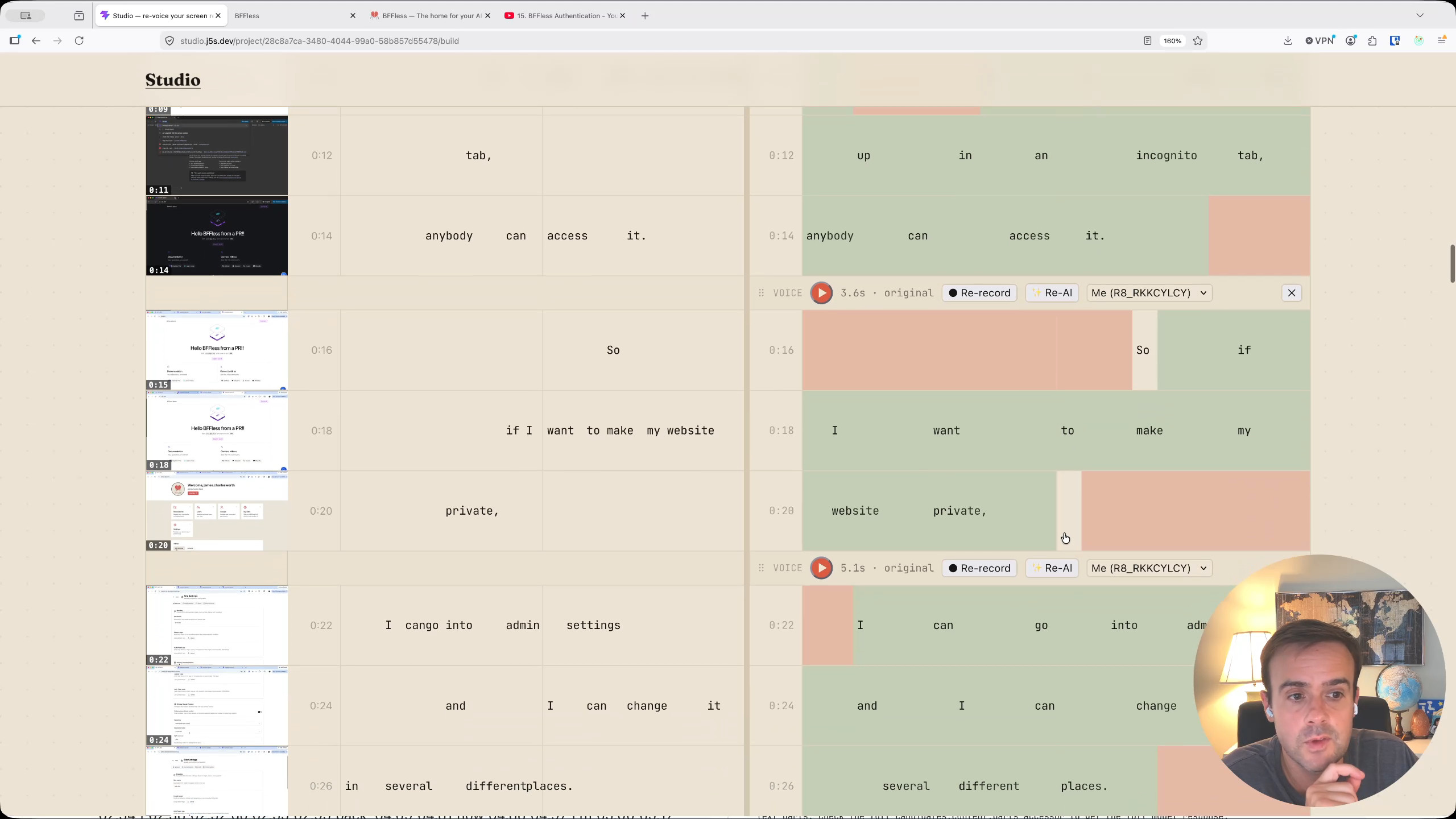
The app then presents a visual diff of the script. Text highlighted in red is cut, green text stays, and blank areas represent removed dead space. You can easily spot where the AI has shaved off a few seconds of delay, or brilliantly identified a 30-to-50-second tangent that needed to go. The app processes this refinement for each chapter sequentially.
Final Assembly and Custom Thumbnails
Once the build steps are complete for all five scenes—having cut the footage, generated contact sheets, refined the script, and assembled the voice segments—it's time for the export step. Studio stitches the individual chapter files back together into a single, cohesive video.
Our original 19-minute and 8-second video has been successfully trimmed down to a tight 7 minutes and 36 seconds. The AI also finalizes the title, writes a YouTube-ready description, and generates accurate chapter timestamps.
To finish the package, Studio automates the thumbnail creation. By defining the video as a "tutorial," the app maps the request to a pre-configured "retro blueprint" thumbnail style stored in a runtime configuration on GitHub.
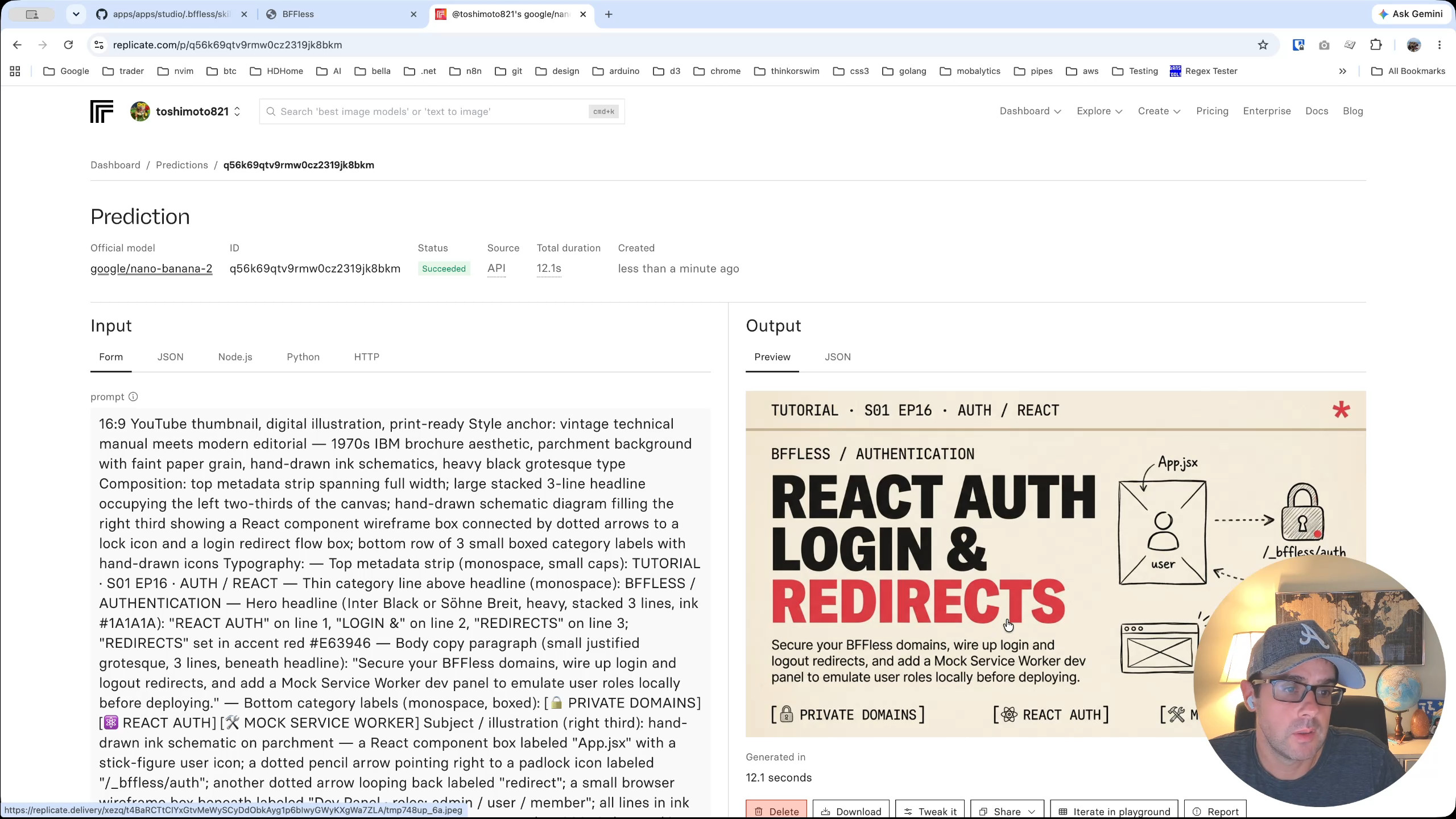
The app calls Claude Sonnet to draft a highly detailed image generation prompt, which is then sent to Nanobanana to render the actual image. The result is a beautiful, custom thumbnail perfectly suited for the video.
Studio is an open-source app built to run on top of BFFless, and it fundamentally changes how I approach video editing. I plan on continually refining it as I produce more content, making the post-production process faster and more intelligent.
You can find the source code on GitHub at github.com/bffless/apps.