Repository Overview
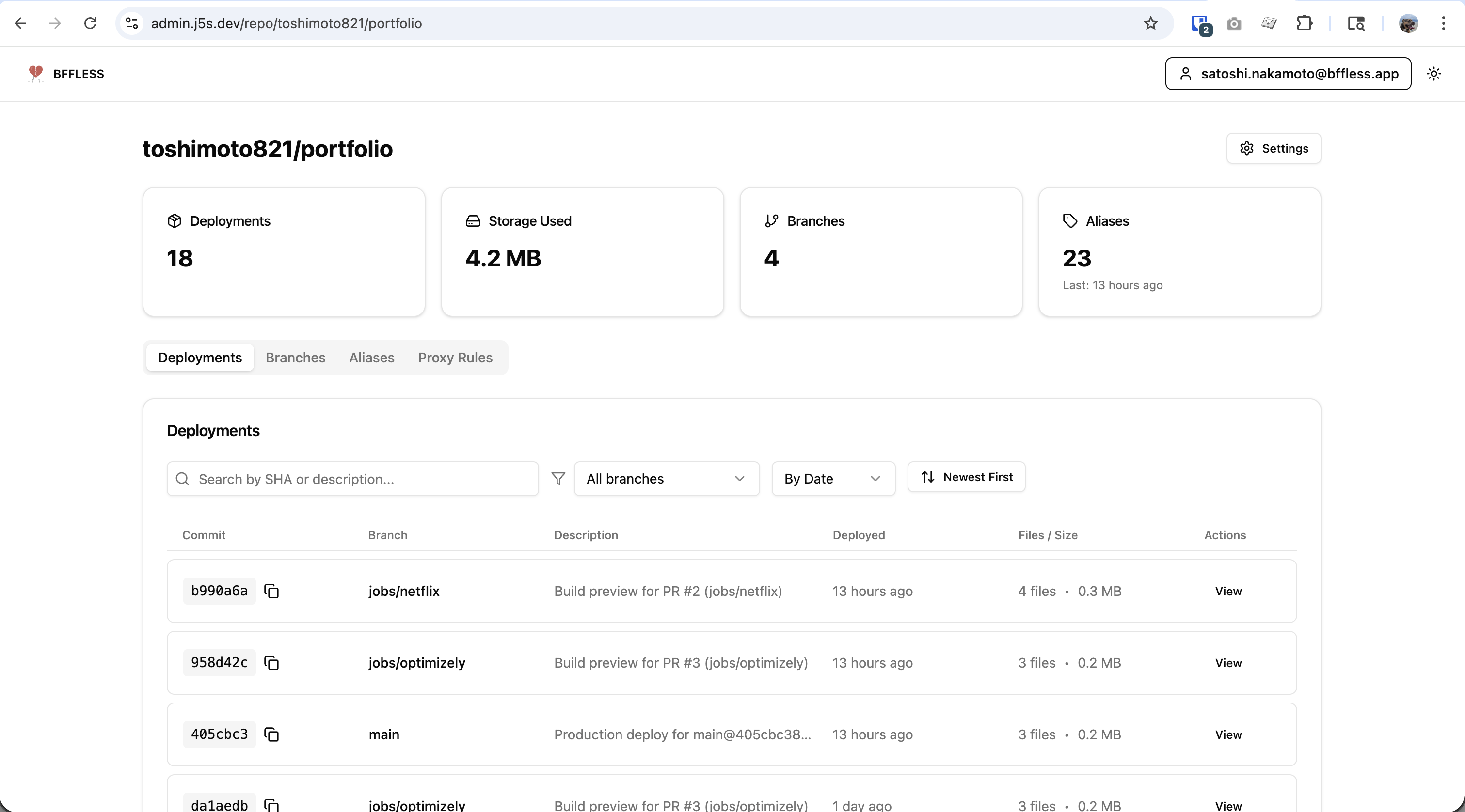
The Repository Overview provides a comprehensive view of all your deployments, aliases, and branches for each repository.
Overview
Every repository in BFFless has a dedicated overview page that displays:
- Repository Statistics: Total deployments, storage used, branch count, alias count
- Deployments List: Paginated list of all deployments with filtering and sorting
- Alias Management: Create, update, and delete deployment aliases
- Branch Overview: View all branches with deployment counts and latest commits
Navigating to Repository Overview
- From the dashboard, click on a repository name
- You will land on the repository overview page at
/repo/:owner/:repo - The page displays repository statistics and three tabs: Deployments, Branches, and Aliases
Content Browser
Click on any deployment to open the Content Browser - a three-panel interface for exploring, previewing, and navigating between versions of your deployed content.
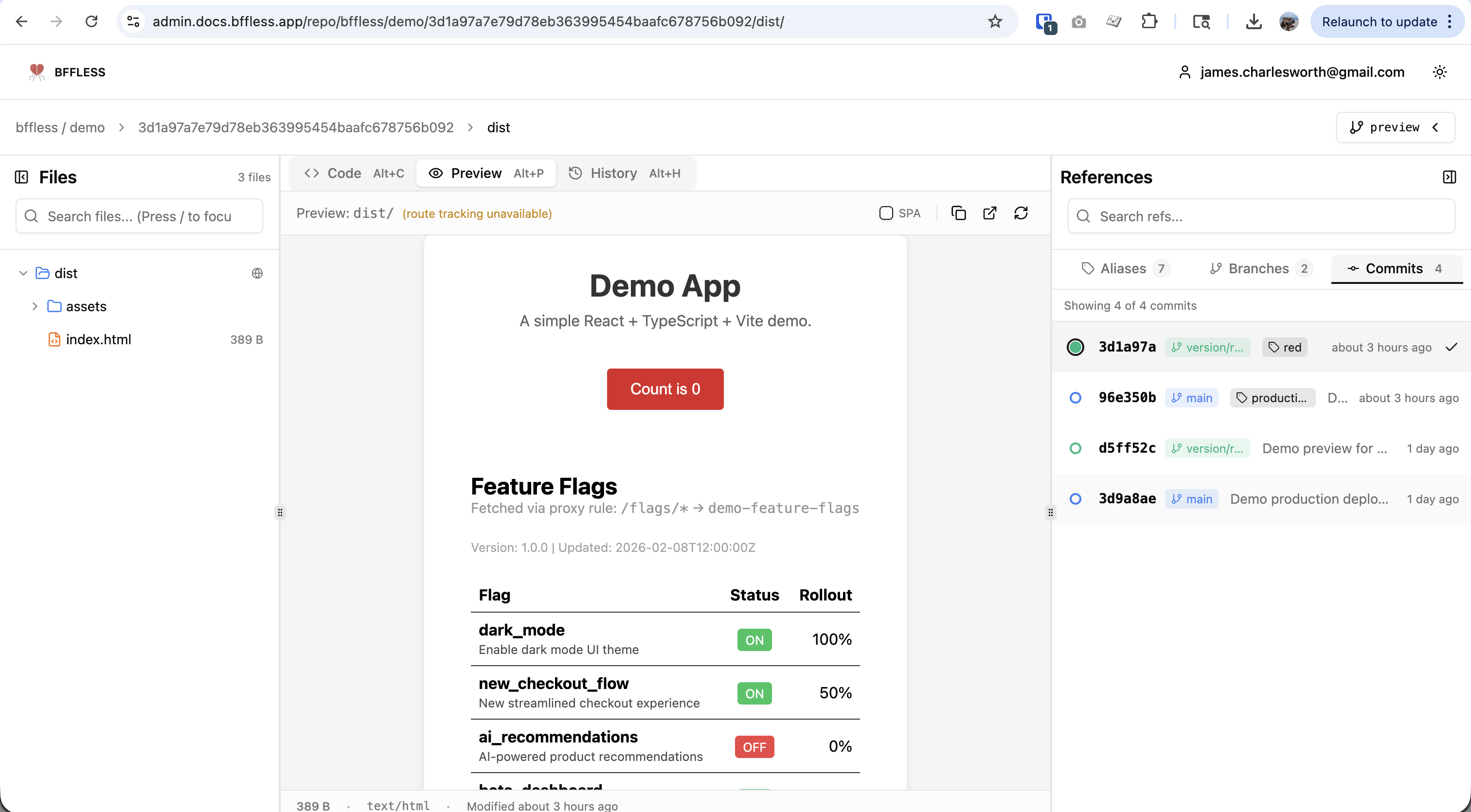
Layout Overview
| Panel | Purpose |
|---|---|
| Files (Left) | Browse the file tree of your deployment |
| Content Viewer (Center) | Preview, view code, or see history for selected files |
| References (Right) | Switch between commits, branches, and aliases |
Files Panel (Left)
The file tree displays all files in your deployment:
- Search: Filter files by name using the search box
- Expandable Folders: Click folders to expand/collapse
- File Info: Shows file size next to each file
- File Count: Total files shown in the header
Click any file to view it in the Content Viewer.
Content Viewer (Center)
The center panel has three viewing modes, accessible via tabs or keyboard shortcuts:
| Tab | Shortcut | Description |
|---|---|---|
| Code | Alt+C | View the raw source code with syntax highlighting |
| Preview | Alt+P | Live iframe rendering of HTML/web content |
| History | Alt+H | View the file's change history across commits |
Preview Toolbar:
- SPA Toggle: Enable Single Page Application mode for client-side routing
- Copy: Copy the file URL to clipboard
- Open in New Tab: View the content in a full browser tab
- Refresh: Reload the preview iframe
Status Bar (bottom): Shows file size, MIME type, and last modified date.
References Panel (Right)
The References panel provides version control navigation with three tabs:
| Tab | Description |
|---|---|
| Aliases | Named references like production, staging |
| Branches | Git branches with deployments |
| Commits | Individual deployment commits |
Each commit row shows:
- Status Indicator: Green circle = currently viewing, hollow = available
- Commit SHA: Short hash (e.g.,
3d1a97a) - Branch Badge: Which branch the commit is from (e.g.,
main) - Alias Badge: Any aliases pointing to this commit (e.g.,
production) - Timestamp: Relative time (e.g., "about 3 hours ago")
- Checkmark: Indicates the currently selected version
Switching Between Versions
Click any commit, branch, or alias in the References panel to instantly switch the Content Browser to that version:
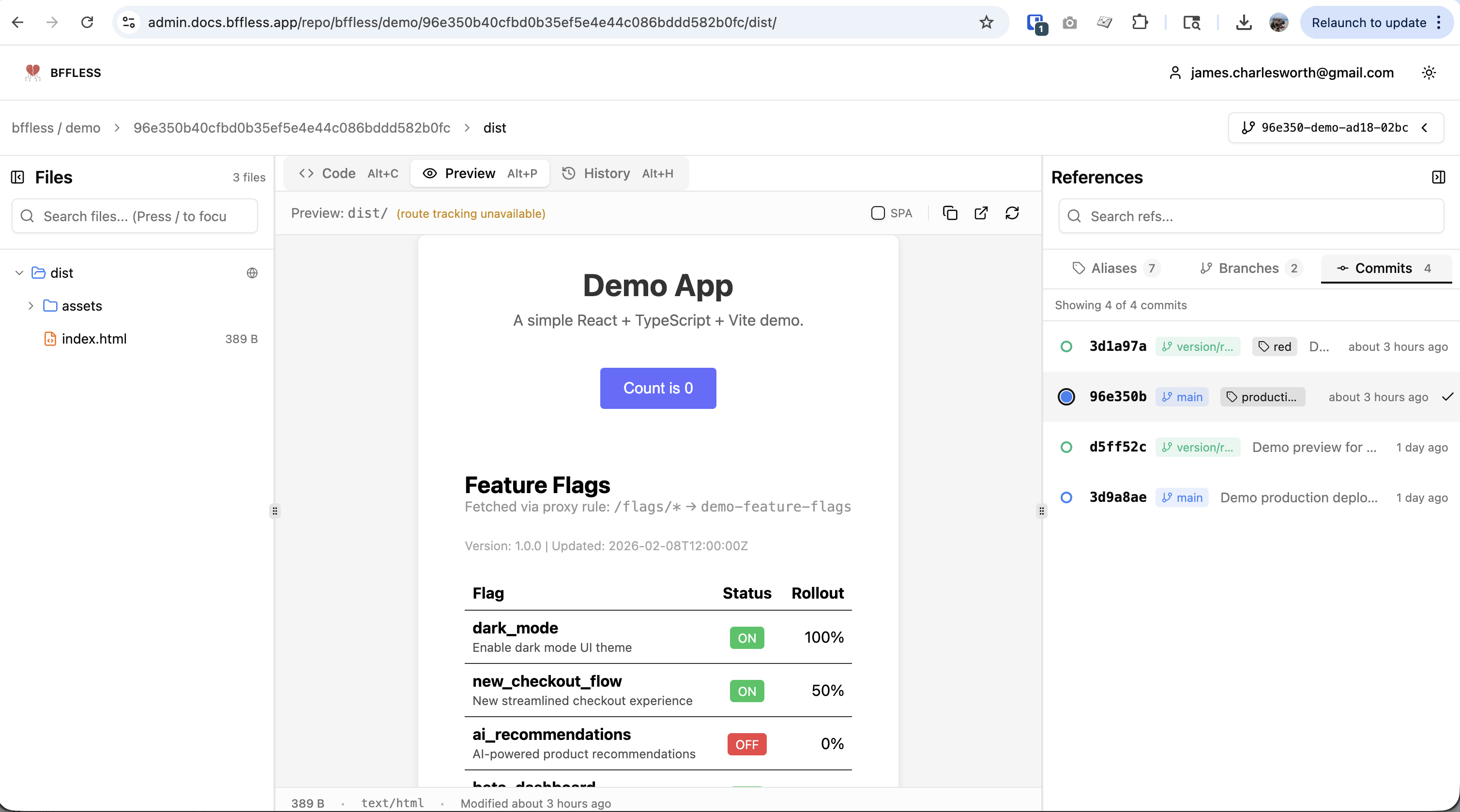
The URL updates to reflect the selected version, making it easy to share links to specific deployments.
Use Cases
Compare Versions: Quickly switch between commits to compare how content changed:
- Select a commit in the References panel
- Preview the content
- Click a different commit to see the previous version
Debug Production Issues: View exactly what's deployed:
- Click the
productionalias in References - Browse the file tree to find the relevant file
- Use Code view to inspect the deployed source
Review Before Promoting: Preview a staging deployment before promoting to production:
- Navigate to the staging commit
- Use Preview mode to test the application
- If satisfied, update the production alias
Deployments Tab
The Deployments Tab shows all deployments for the repository:
View Deployments List
Each row shows:
- Commit SHA (short) - Click to copy full SHA
- Branch - The branch this deployment came from
- Workflow Name - The CI/CD workflow that created it
- Deployed Date - When the deployment was created
- File Count - Number of files in the deployment
- Total Size - Storage size of the deployment
Search Deployments
Use the search box to filter by commit SHA, description, or workflow name. Search is case-insensitive and filters in real-time.
Filter by Branch
- Click the branch filter dropdown
- Select a specific branch or "All Branches"
- The list updates to show only deployments from that branch
Sort Deployments
Use the sort dropdown to sort by:
- Date (Newest First / Oldest First)
- Branch (A-Z / Z-A)
Pagination
- Use the pagination controls at the bottom
- Shows "Page X of Y • Z total deployments"
- Previous/Next buttons navigate between pages
Aliases Tab
The Aliases Tab allows you to create named references to deployments (e.g., "production", "staging").
Understanding Aliases
BFFless supports two types of aliases:
Manual Aliases - User-created named references (e.g., production, staging):
- Created and updated via the Aliases tab
- Point to any commit SHA you choose
- Ideal for stable environments
Auto-Preview Aliases - Automatically generated for every upload:
- Created automatically when CI/CD uploads a build
- Deterministic subdomain based on commit + repository
- Format:
{shortSha}-{repoPrefix}-{repoHash}-{basePathHash} - Example:
b990a6-portfoli-ee59-02bc
URL Access Patterns:
| Type | URL Format | Example |
|---|---|---|
| Preview Subdomain (recommended) | https://{alias}.yourdomain.com/ | https://b990a6-portfoli-ee59-02bc.j5s.dev/ |
| Alias Path | /repo/{owner}/{repo}/alias/{alias}/ | /repo/acme/web-app/alias/production/ |
| SHA Path (fallback) | /repo/{owner}/{repo}/{sha}/ | /repo/acme/web-app/abc123/ |
Preview subdomain URLs require wildcard DNS (*.yourdomain.com) to be configured. The SHA path URL works without wildcard DNS and is useful for development environments.
View Aliases
See all existing aliases with their target commits. Each row shows:
- Alias Name
- Commit SHA
- Branch
- Last Updated Date
Create Alias
- Click "Create Alias" button
- Enter an alias name (alphanumeric, hyphens, underscores only)
- Select a commit from the dropdown
- Click "Create Alias"
Update Alias
- Click "Edit" button on any alias
- Select a new commit to point the alias to
- Click "Update"
Delete Alias
- Click "Delete" button on any alias
- Confirm deletion in the dialog
- Alias is permanently removed
Alias management requires authentication. You must be logged in and have write access to the repository.
Branches Tab
The Branches Tab displays all branches in the repository:
View Branches List
Each row shows:
- Branch Name
- Latest Commit SHA - The most recent deployment
- Last Deployed - Relative time (e.g., "2 hours ago")
- Deployments - Total number of deployments on this branch
Navigate to Branch
Click the "View" button to navigate to the latest deployment on that branch.
Repository Statistics
The stats header shows four key metrics:
| Metric | Description |
|---|---|
| Deployments | Total number of deployments in the repository |
| Storage | Total storage used (e.g., "1.2 GB") |
| Branches | Number of unique branches with deployments |
| Aliases | Number of configured aliases |
Common Workflows
Deploy to Production
- CI/CD uploads new build → Creates deployment with commit SHA
- Test the deployment via auto-generated preview subdomain
- Go to Aliases tab → Update
productionalias to new commit - Live site now serves the new version
Rollback
- Go to Aliases tab
- Find the
productionalias - Click "Edit"
- Select the previous commit SHA
- Click "Update"
The site instantly reverts to the previous version.
Preview Pull Requests
- CI/CD uploads PR build with commit SHA
- BFFless automatically generates a preview subdomain
- Share the preview URL for review:
https://b990a6-portfoli-ee59-02bc.j5s.dev/ - After merge, update staging/production alias to the new commit
The preview URL is deterministic—the same commit + repository always generates the same subdomain, making it easy to share and bookmark.
Tips
- Copy Commit SHA: Click the copy button next to any commit SHA to copy the full SHA to your clipboard
- Quick Navigation: Use keyboard shortcuts for common actions
- Search: The search is instant and searches across SHA, description, and workflow name
- Filters Persist: Your branch filter and sort preferences persist during your session
Related Features
- Traffic Splitting - A/B testing with aliases
- Share Links - Share private deployments
- GitHub Actions - Automated deployments