Traffic Splitting
Watch the walkthrough (jumps to the Traffic Splitting section):
Split traffic across multiple deployment aliases for A/B testing, canary deployments, or personalized content delivery.
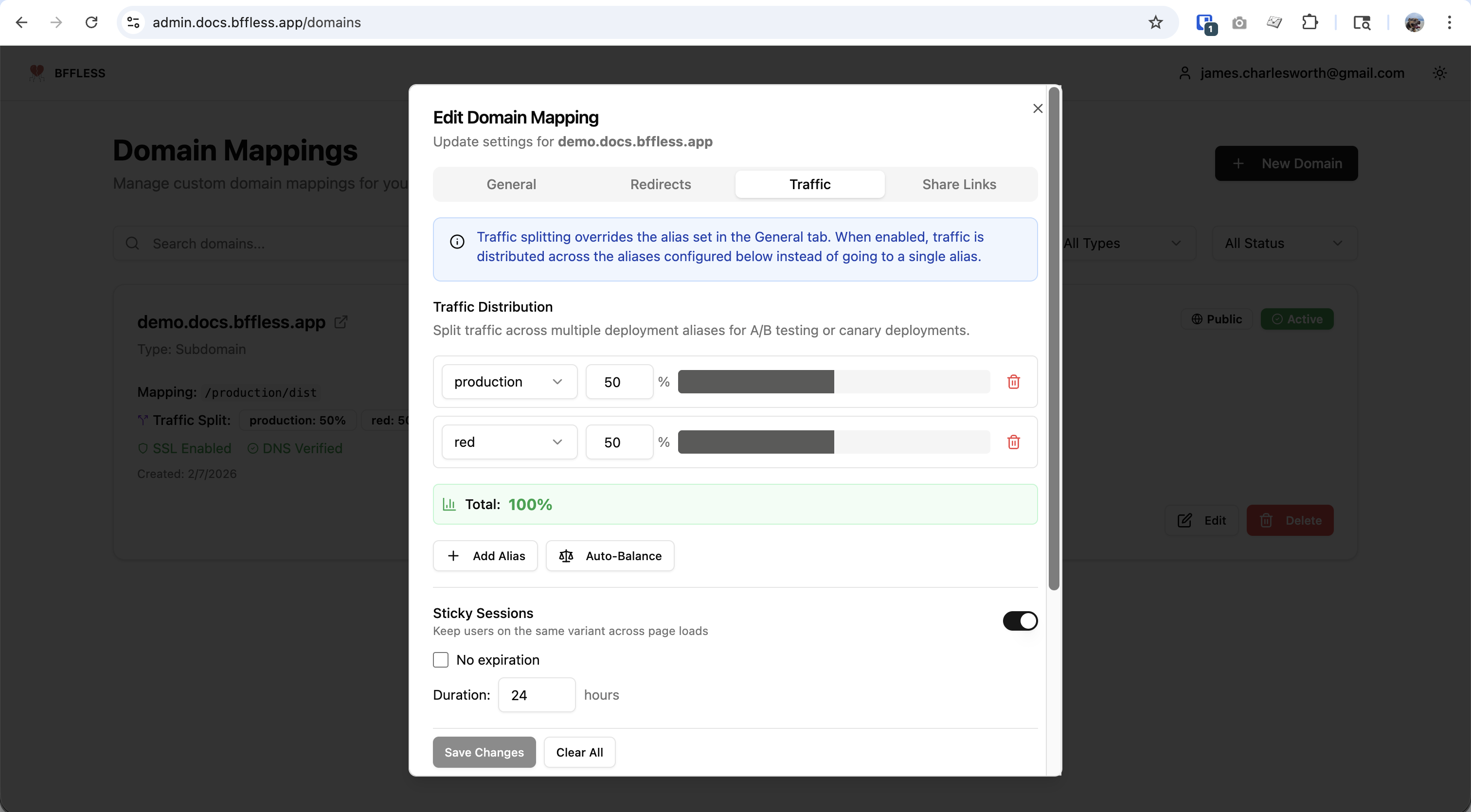
Live Demo
Try traffic splitting yourself at demo.docs.bffless.app ↗. This demo splits traffic 50/50 between two versions:
- production - Purple button (default)
- red - Red button (see the PR ↗)
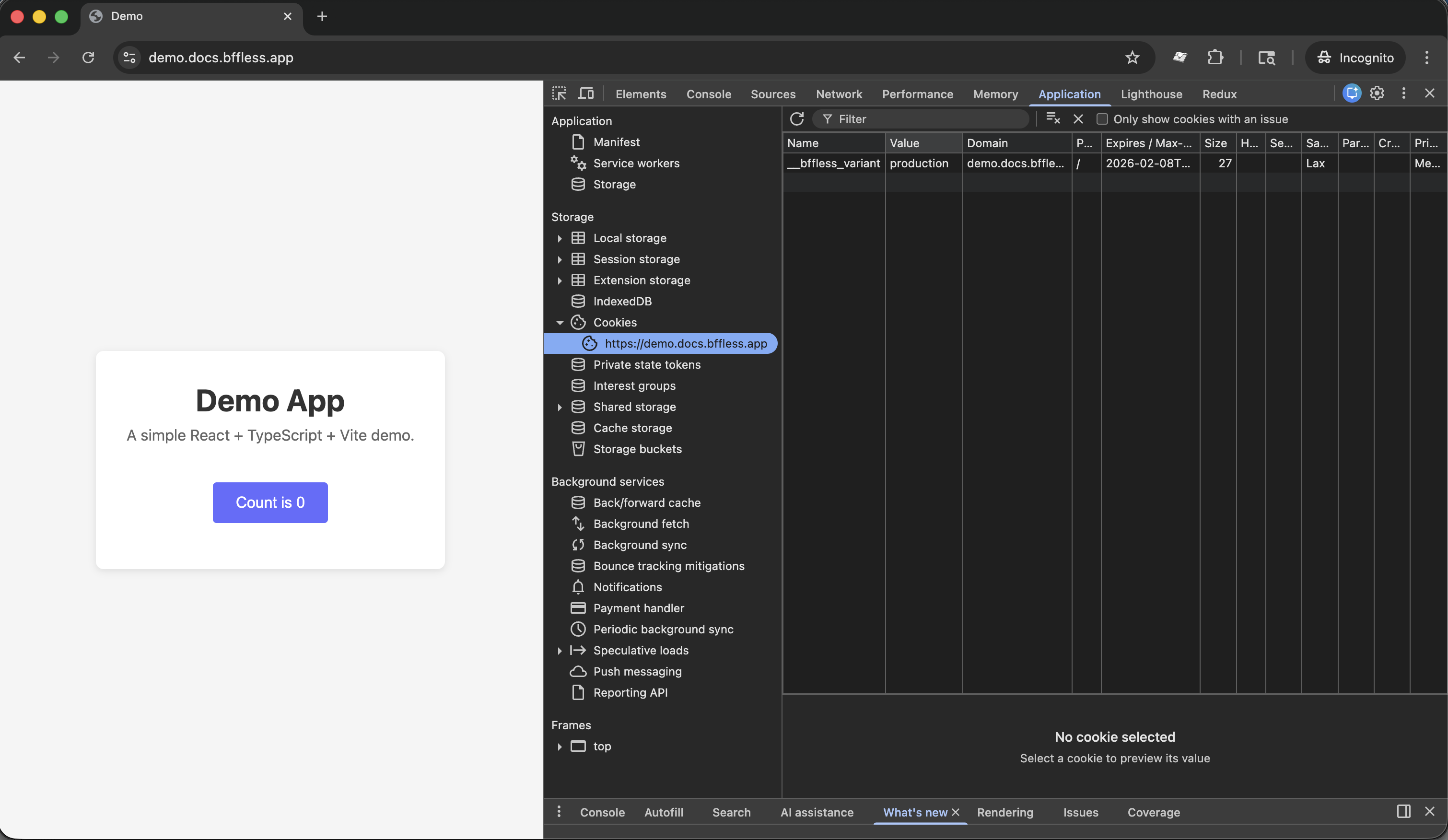
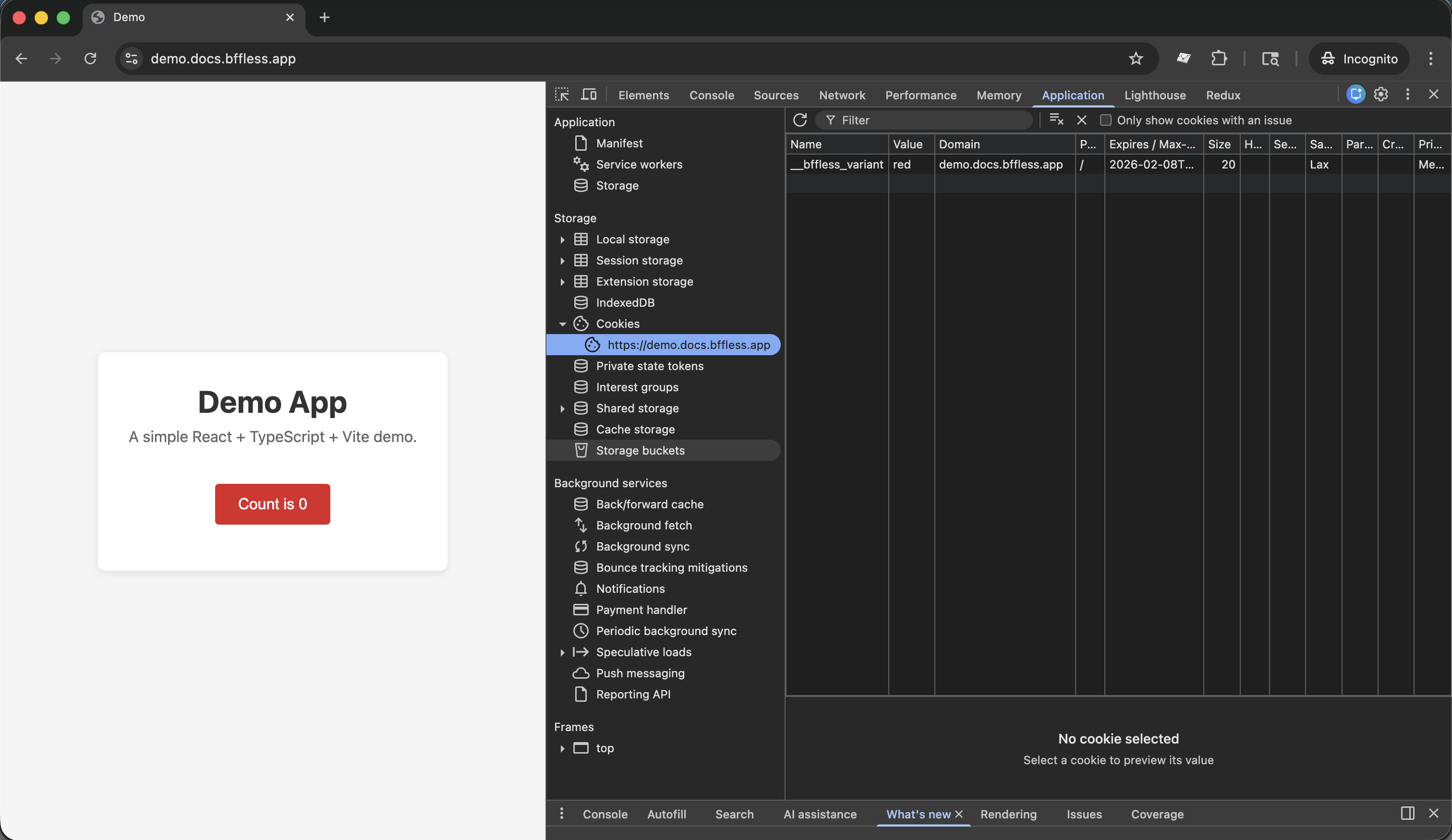
Open in an incognito window to get randomly assigned, or use query parameters to force a specific variant:
- demo.docs.bffless.app/?version=default ↗ - Force production (purple)
- demo.docs.bffless.app/?version=red ↗ - Force red variant
Overview
Traffic splitting allows you to distribute visitors across different versions of your site. This is useful for:
- A/B Testing - Compare two versions of a page to see which performs better
- Canary Deployments - Gradually roll out new features to a subset of users
- Personalized Content - Serve customized content to specific audiences
- Feature Flags - Test new features with a percentage of traffic before full rollout
How It Works
When traffic splitting is enabled for a domain, incoming requests are distributed across your deployment aliases based on configured weights. The platform uses cookies to maintain sticky sessions, ensuring users see consistent content across page loads.
Configuration
Access traffic splitting from Admin → Settings → Domain Mapping → Traffic tab.
Traffic Distribution
Configure the percentage of traffic each alias receives:
| Setting | Description |
|---|---|
| Alias | Select from your deployment aliases (e.g., production, staging, canary) |
| Weight % | Percentage of traffic to send to this alias (0-100) |
| Total | Must equal 100% (shown in green when valid) |
Buttons:
- Add Alias - Add another alias to the distribution
- Auto-Balance - Automatically distribute weights evenly across all aliases
Sticky Sessions
Keep users on the same variant across page loads:
| Setting | Description |
|---|---|
| Sticky Sessions | Toggle to enable/disable session persistence |
| No expiration | Cookie persists indefinitely (until browser clears cookies) |
| Custom duration | Set expiration time (e.g., 24 hours, 7 days) |
When enabled, a __bffless_variant cookie is set with the selected alias name.
Traffic Rules
Override weighted distribution with deterministic routing rules. When a condition matches, the visitor is forced to that alias regardless of weights.
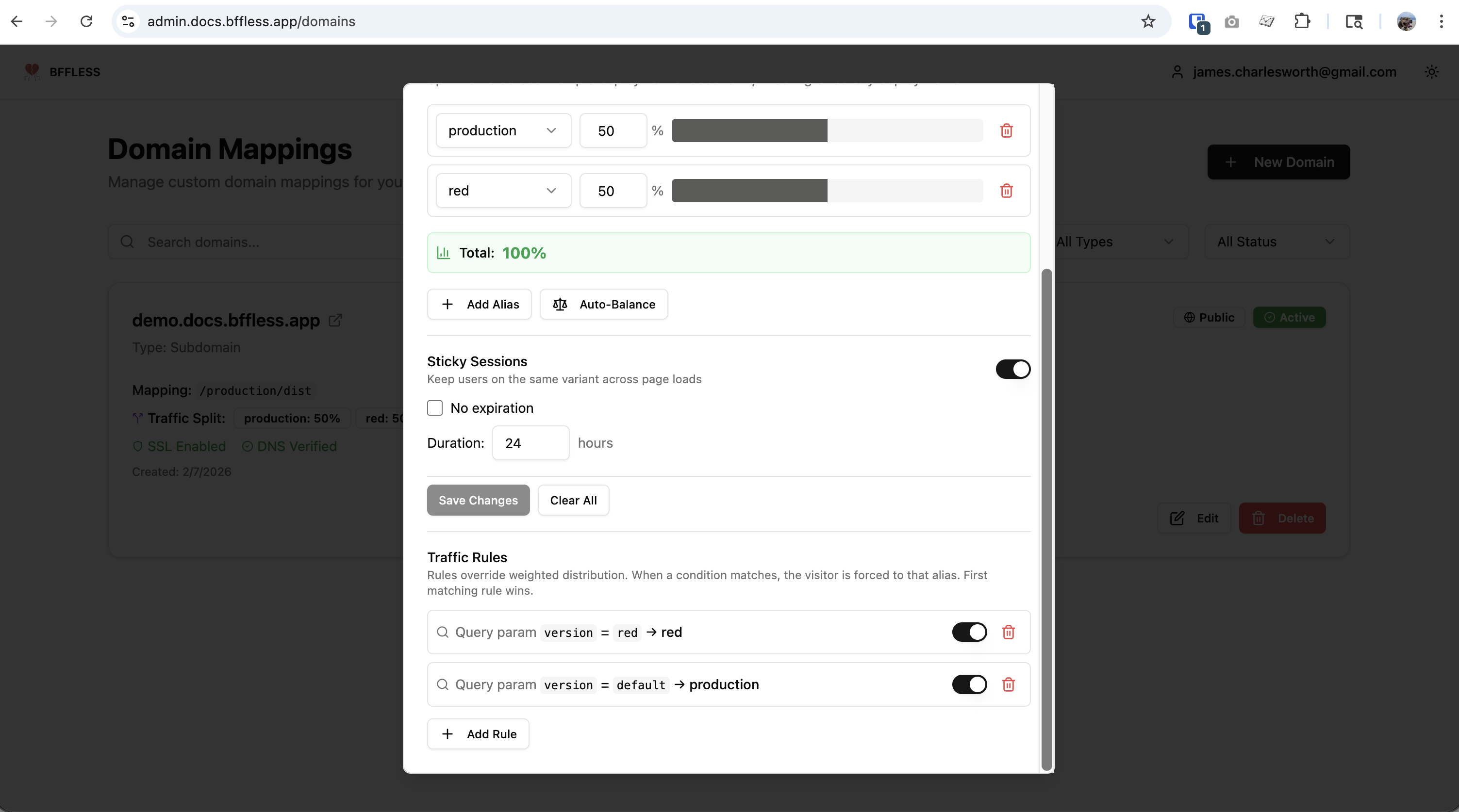
| Rule Type | Example | Use Case |
|---|---|---|
| Query Parameter | version=red → red | Force specific variant for testing/validation |
| Cookie | audience=enterprise → enterprise | Segment returning visitors |
This is useful for:
- QA validation - Test each variant before going live
- Support debugging - Reproduce what a user is seeing
- Share links - Direct links to specific variants for stakeholders
Rule priority: First matching rule wins. Rules are evaluated top-to-bottom.
Use Cases
A/B Testing
Test two versions of your site to see which performs better. The live demo ↗ shows this in action:
production: 50%  (purple button - current design)
red:        50%  (red button - new design variant)
Track conversions using your analytics platform to determine the winner.
Personalized Portfolios
Create customized experiences for different audiences using Share Links:
skills:      50%  (A/B test: skills-focused layout)
production:  50%  (A/B test: original layout)
netflix:      0%  (custom for Netflix recruiters)
optimizely:   0%  (custom for Optimizely team)
Aliases at 0% weight don't receive random traffic—they're only accessible via share links with traffic rules:
- Share link
netflix→ Routes tonetflixalias - Share link
optimizely→ Routes tooptimizelyalias
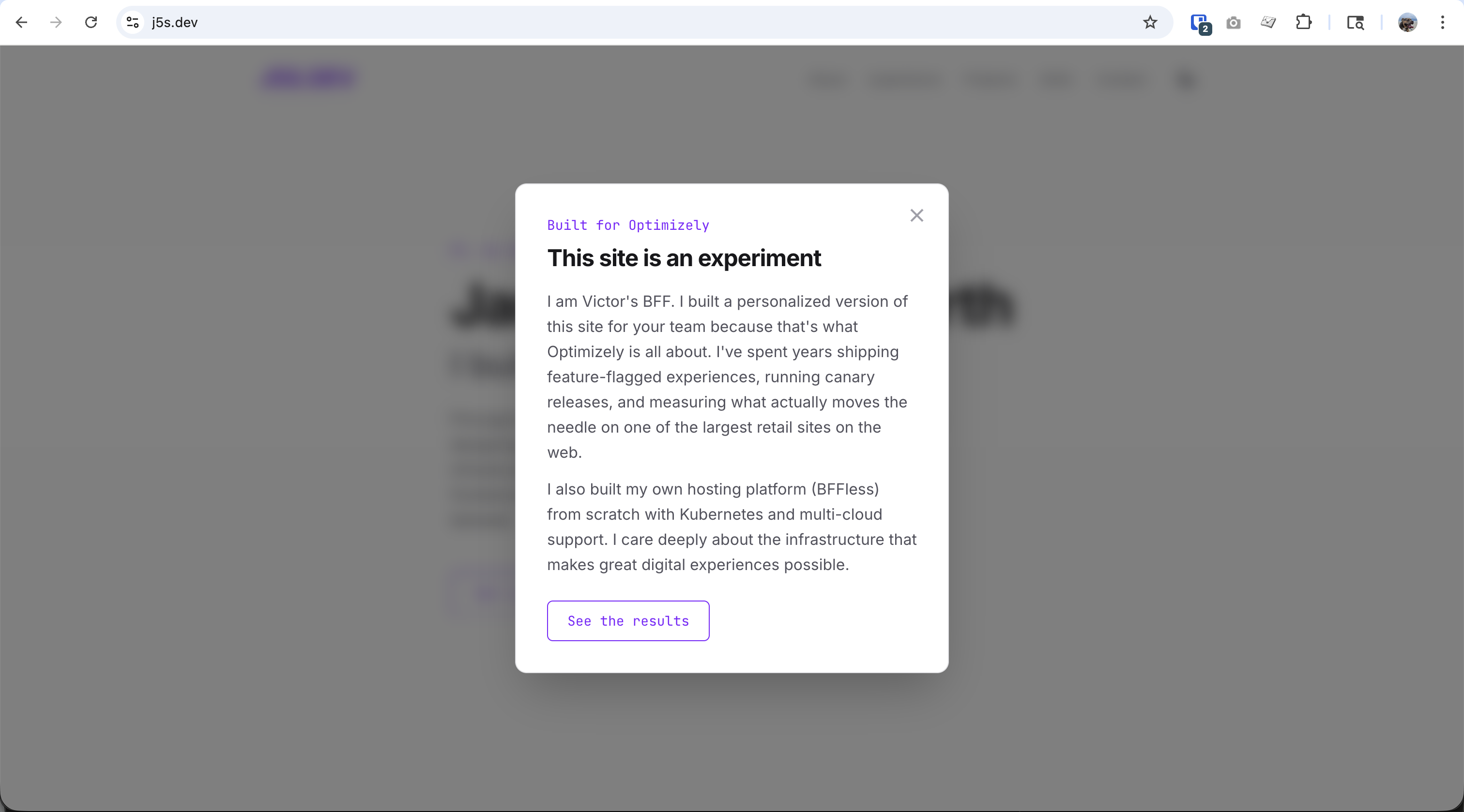
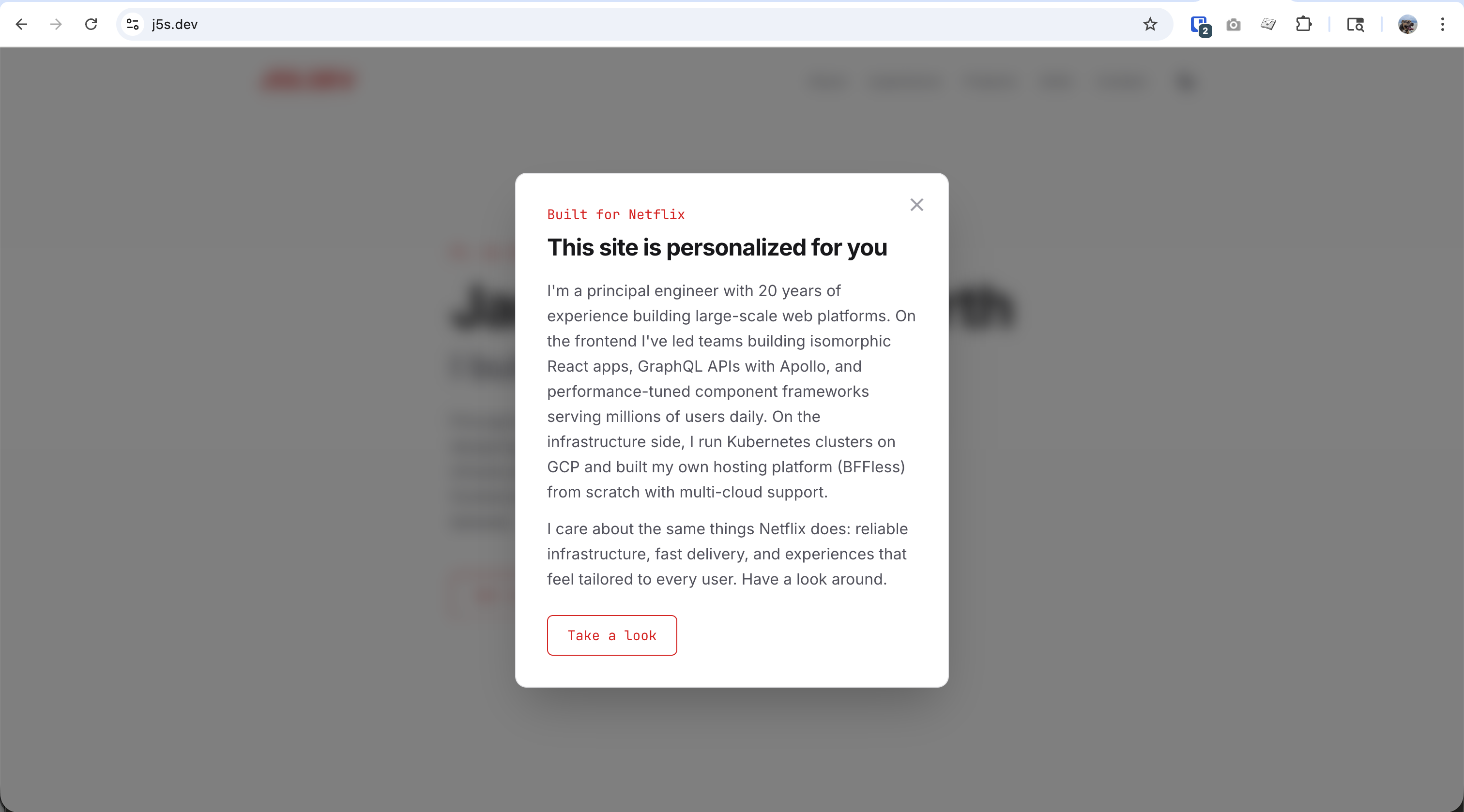
This setup lets you:
- A/B test
skillsvsproductionfor general visitors (50/50 split) - Show personalized content to Netflix and Optimizely recruiters via their unique share links
Canary Deployments
Gradually roll out a new version:
| Week | Production | Canary | Action |
|---|---|---|---|
| 1 | 95% | 5% | Monitor error rates |
| 2 | 80% | 20% | Check performance metrics |
| 3 | 50% | 50% | Validate with broader traffic |
| 4 | 0% | 100% | Promote canary to production |
Geographic or Segment Testing
Combine with traffic rules for targeted experiences:
production: 100%  (default)
enterprise:   0%  (enterprise customers only)
Traffic Rule: Cookie plan=enterprise → enterprise
Set the cookie when users log in to your SaaS, and they'll automatically see the enterprise variant.
Technical Details
Cookie Behavior
| Cookie | Value | Attributes |
|---|---|---|
__bffless_variant | Alias name (e.g., production) | Secure, SameSite=Lax |
The cookie is set on first visit and read on subsequent requests to maintain session consistency.
The cookie is intentionally not HttpOnly, so client-side JavaScript can read it via document.cookie to determine which variant is being served. This is useful for analytics tracking or conditional UI logic.
Response Headers
The selected variant is also returned in a response header:
X-Variant: production
This can be useful for debugging or analytics integration.
Weight Distribution Algorithm
Weights are normalized to 100%. The selection algorithm:
- Generate random number 0-100
- Iterate through aliases, accumulating weights
- Select alias when cumulative weight exceeds random number
Example with weights [50, 30, 20]:
- Random 0-50 → First alias
- Random 51-80 → Second alias
- Random 81-100 → Third alias
Traffic Rules Priority
Rules are evaluated before weighted distribution:
- Check query parameters against rules
- Check cookies against rules
- If no rule matches, use weighted random selection
Best Practices
A/B Testing
- Define success metrics before starting the test
- Run tests long enough to reach statistical significance
- Test one variable at a time for clear results
- Use sticky sessions to avoid user confusion
Canary Deployments
- Start small (1-5% traffic)
- Monitor error rates and performance closely
- Have a rollback plan ready
- Gradually increase traffic if metrics look good
Personalized Content
- Use secure, unguessable tokens for share links
- Set aliases to 0% weight so personalized variants don't appear in random rotation
- Track which links are shared for analytics
Troubleshooting
Users seeing inconsistent content
Cause: Sticky sessions disabled or cookie cleared
Fix: Enable sticky sessions and consider "No expiration" for longer tests
Traffic rule not working
Cause: Rule syntax or priority issue
Fix:
- Verify the query parameter or cookie name matches exactly
- Check rule is enabled (toggle on)
- Remember first matching rule wins
Weights don't add to 100%
Cause: Configuration error
Fix: Use "Auto-Balance" button or manually adjust percentages
Cookie not being set
Cause: Browser blocking third-party cookies or site not using HTTPS
Fix: Ensure site is served over HTTPS; check browser privacy settings
Related Features
- Share Links - Share private content without requiring login
- Proxy Rules - URL rewriting and routing