Using BFFless Skills and MCP Server for AI Workflows
When working with an LLM like Claude, the model is only as helpful as the context it has. BFFless publishes a dedicated skills repository — available at github.com/bffless/skills — that gives your AI coding agent domain knowledge about the BFFless platform. Once installed, these skills let Claude understand BFFless concepts like pipelines, proxy rules, deployments, and more, so you can ask informed questions and get accurate guidance without having to explain the platform from scratch every time.
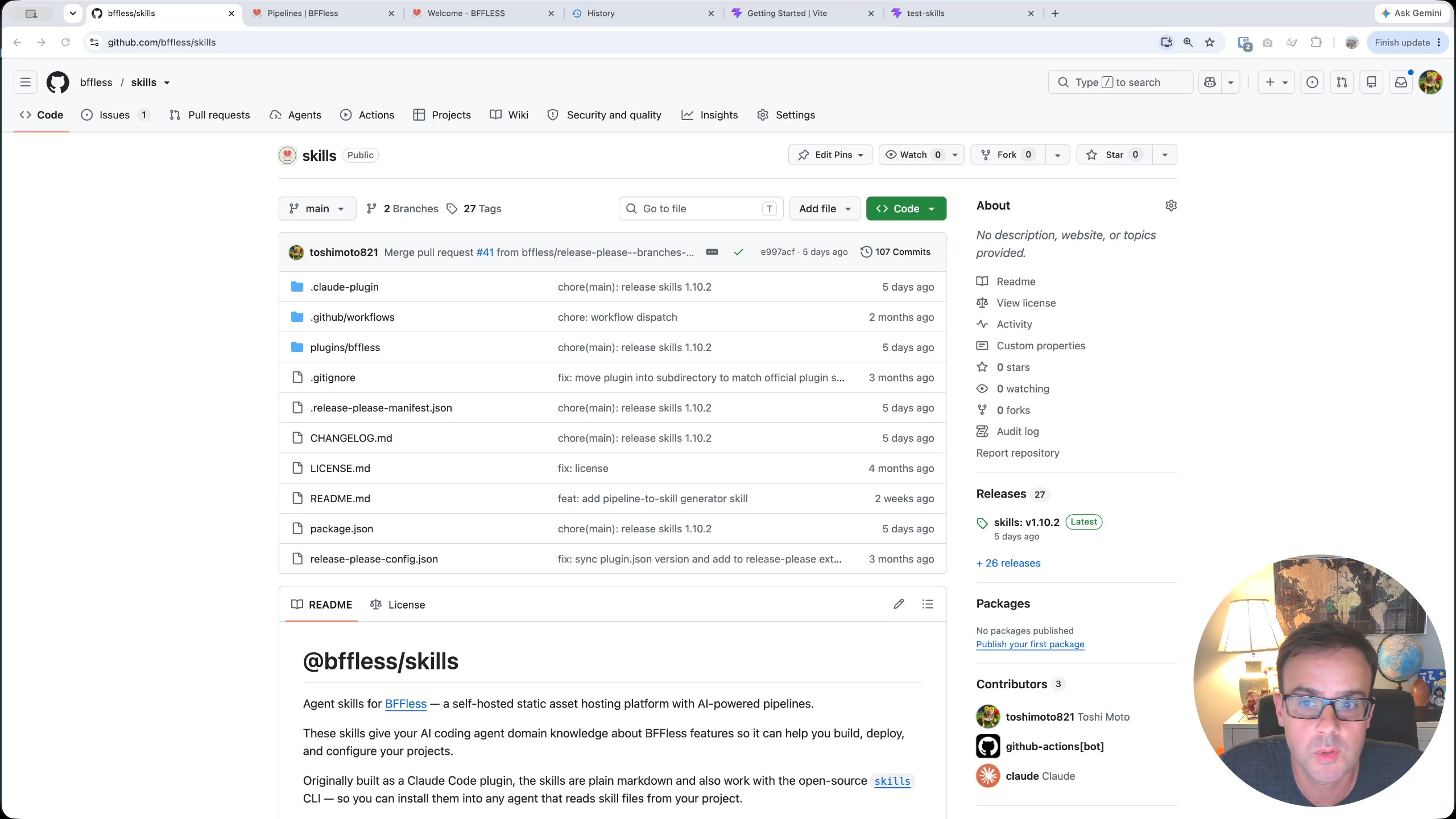
This walkthrough covers three complementary techniques: installing the developer skills into Claude Code, using skills inside a BFFless pipeline for consistent AI-generated content, and wiring up the MCP server so Claude can query and manage your BFFless backend directly.
Installing Developer Skills in Claude
The recommended way to get started is with Claude Code and its plugin marketplace. To follow along, you only need a project open in your terminal — even a bare-bones Vite "Hello World" site will do.
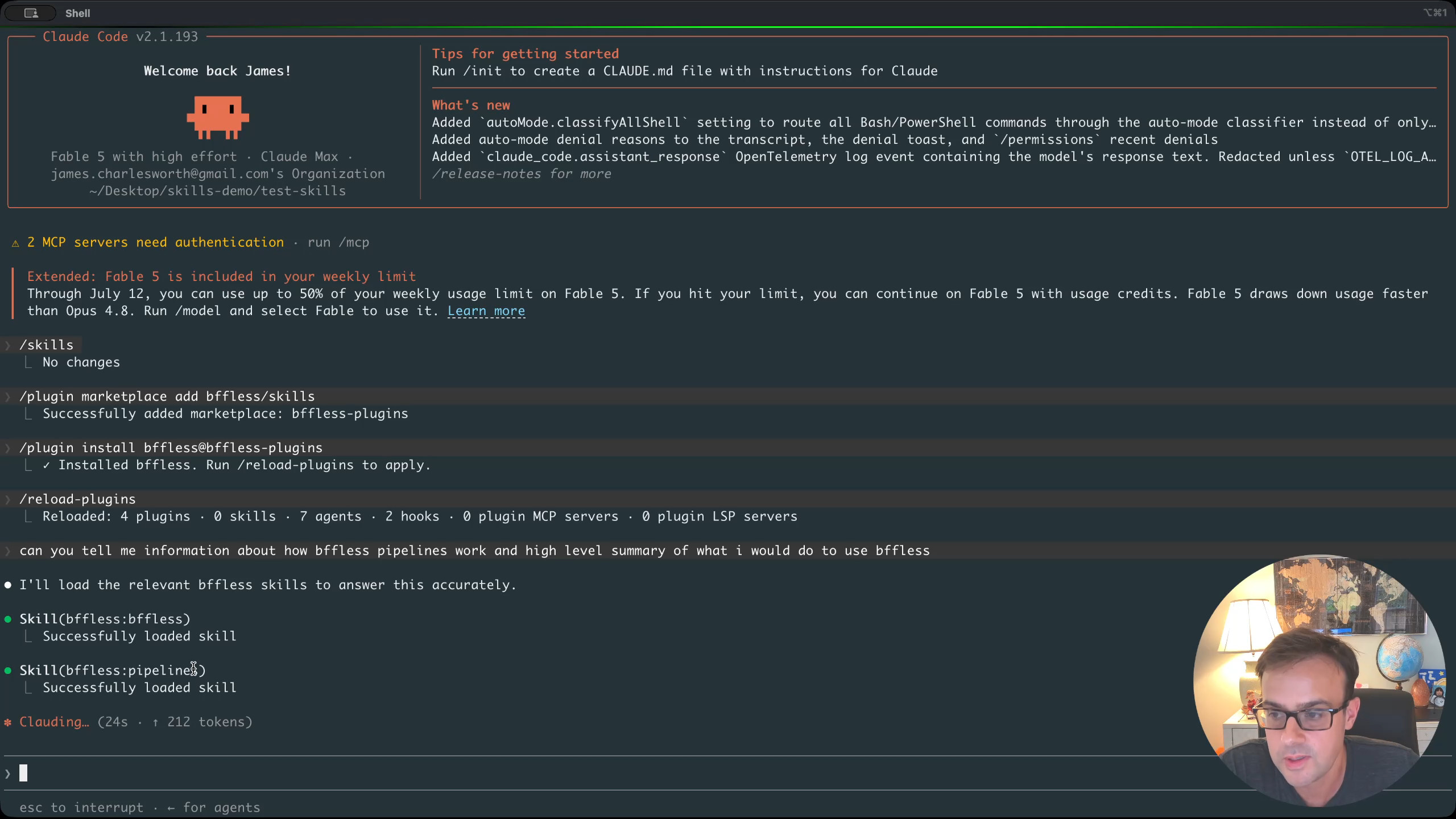
Open Claude Code at the root of your project. If you list your existing skills you will see whatever you already have installed, but no BFFless-specific knowledge yet. Installation is a two-step process:
- Add the BFFless marketplace:
claude marketplace add BFFless/skills
- Install the plugin from that marketplace:
claude plugin install BFFless-plugins
During installation you are asked whether to install at the project scope or the user scope. A project-scoped skill lives inside your repository directory (and will be checked into Git unless you add it to .gitignore). A user-scoped skill is installed once and shared across every project — a better fit if you use BFFless across many repos.
After installing, run:
reload plugins
Claude will now list the BFFless skills alongside any others you have. You can immediately test it by asking something like "Can you tell me information about how BFFless pipelines work and give me a high-level summary of what I would do to use BFFless?" Claude will invoke the skill automatically — first loading the general BFFless skill, then the more specific pipelines skill — and return a rich, informed answer.
Using Skills in BFFless Pipelines
Skills are not just for developer tooling. You can also leverage them inside a BFFless pipeline to give your AI handlers persistent, reusable context. This is especially powerful for creative workflows where you want consistent branding without repeating yourself in every prompt.
Consider a real-world example: a post-production app called Studio that generates YouTube video thumbnails. The pipeline works in two stages:
- Draft the prompt — A pipeline handler calls Claude (via the Vercel AI SDK) with a system prompt that says something like "You write a single image generation prompt for Google Nano Banana that becomes a YouTube video thumbnail." Along with high-level direction, it receives the video's title, description, full script, and any creator notes.
- Generate the image — The resulting prompt is fed to a second AI endpoint (Replicate's Nano Banana model) that actually produces the thumbnail.
The key ingredient is the skill attached to the first handler. Instead of pasting styling instructions into every pipeline call, you define a skill once — stored under your app's BFFless skills directory — and the AI handler loads it at runtime when it deems it relevant.
Defining a pipeline skill
Inside the BFFless admin, navigate to your app's skills. You can have multiple skills defined, but only enable the ones you want active. In this example, the skill named image prompts contains direction like:
- For tutorials, walkthroughs, or explainers → use the retro blueprint style
- For "watch me code" content → use the modern dev tool style
Each style section includes detailed descriptions of colors, composition, and visual elements. Because the skill is defined once, every thumbnail generated through this pipeline inherits the same aesthetic — different content, same brand.
Seeing the skill in action
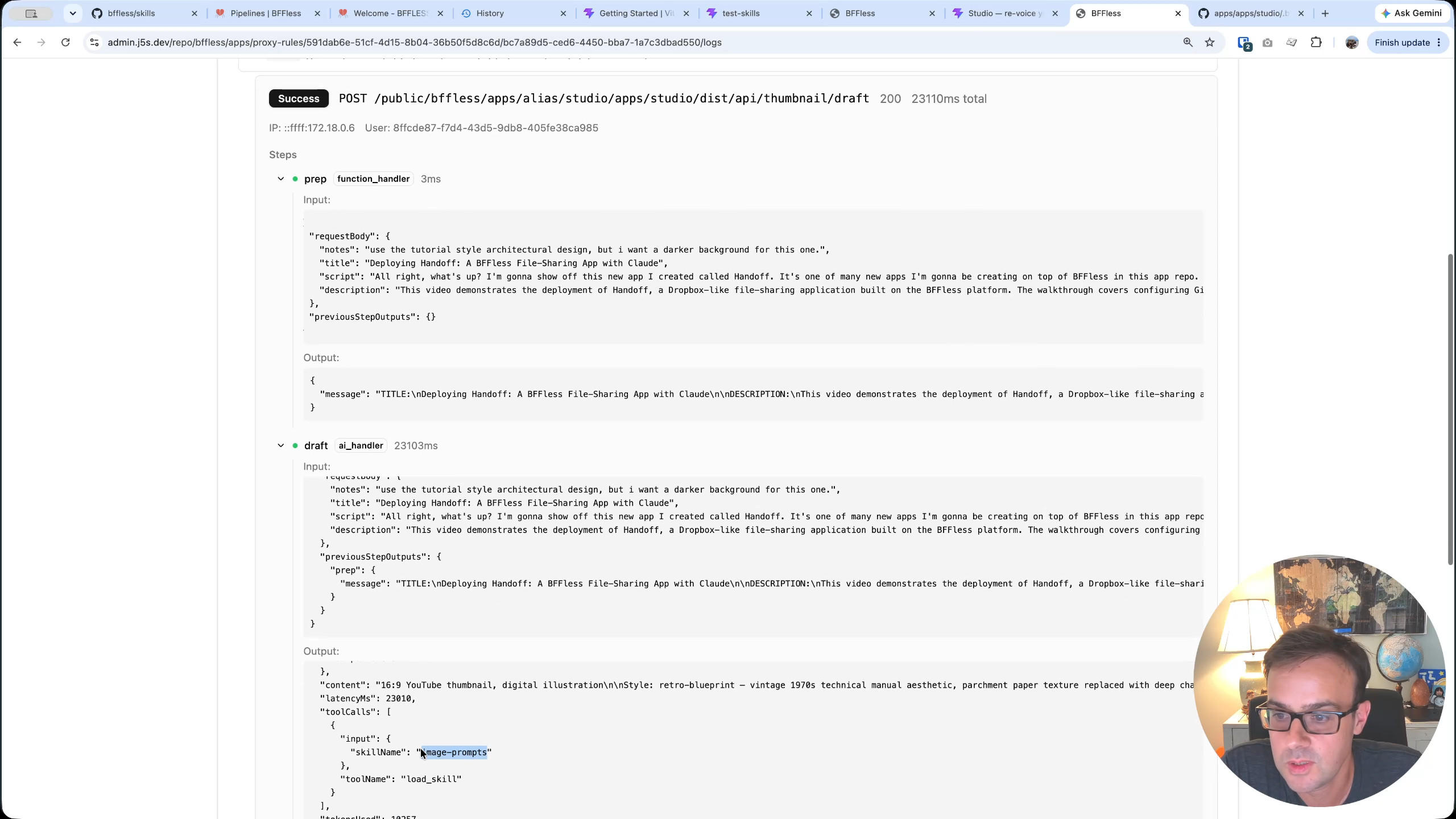
To test, you can trigger the pipeline with a small twist — for instance, requesting "use the tutorial style architecture design, but I want a darker background for this one." The pipeline calls Claude, which invokes the skill as a tool call, applies the stored retro-blueprint styling, and layers in the user's request for a darker background.
In the execution logs you can inspect the full trace: the system prompt, the user's additional info, and — critically — the tool call where the skill was loaded. The AI received all the rich styling context without the user having to spell it out again.
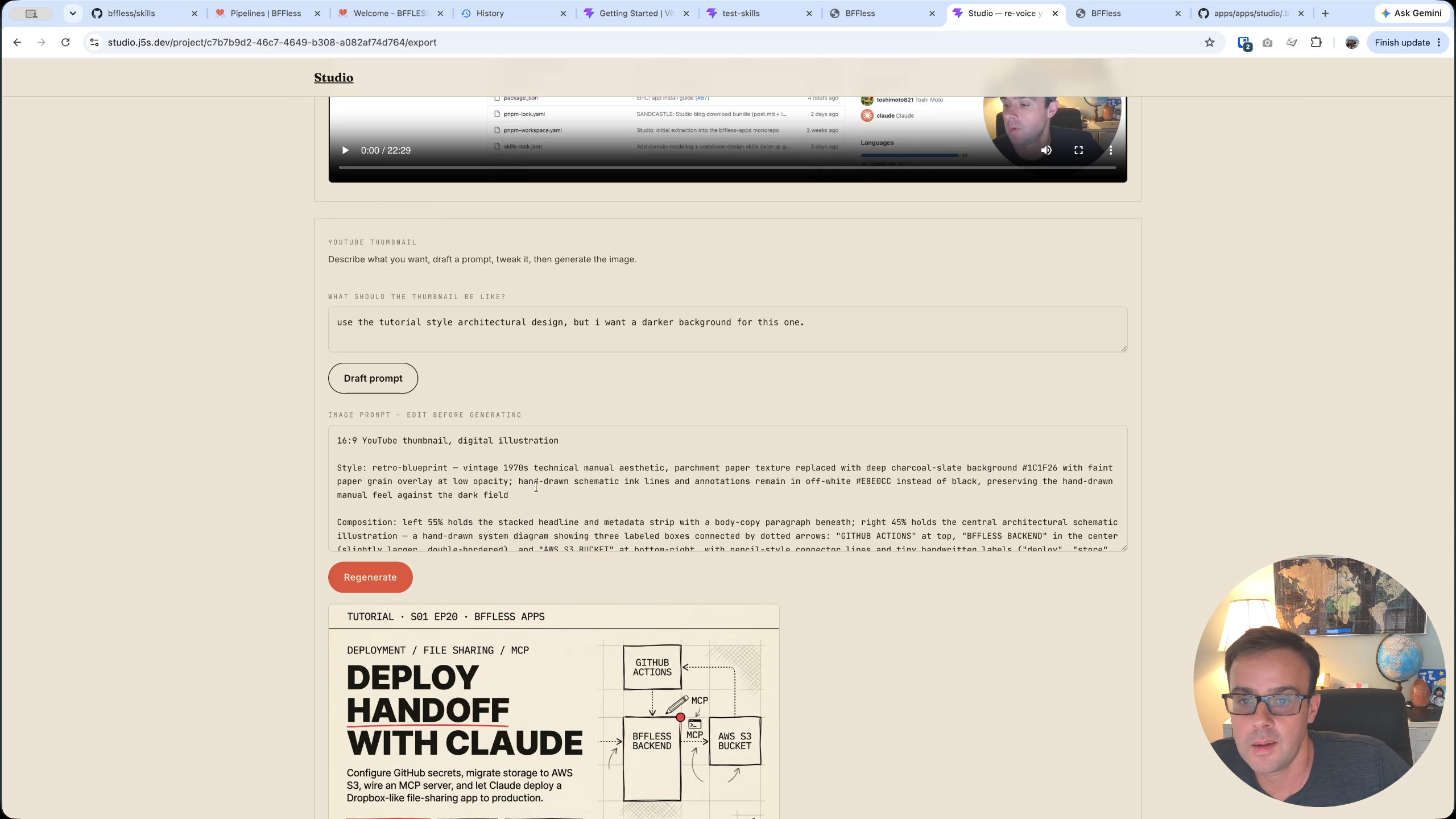
The result is a thumbnail that looks almost identical to previous ones in the series, except with the requested black background. If you were to disable the skill entirely, the output would have a completely different feel. Skills give your LLM relevant, consistent context and eliminate repetition — whether you are a developer asking questions in your terminal or an AI pipeline generating branded content.
Setting Up the MCP Server
The final piece of the puzzle is the BFFless MCP server. MCP (Model Context Protocol) lets Claude make API calls directly to your BFFless backend — listing projects, managing deployments, and more — all from within your coding session. The BFFless skills already know how to use the MCP server, so the two complement each other naturally.
All the setup details live in the BFFless docs under Features → MCP Server. The short version:
-
Create an API key in your BFFless admin panel. Navigate to Settings → API Keys and create a new key. You can scope it to a specific project or create a global key that covers every project on that instance.
-
Register the MCP server with Claude by running a single command that includes your BFFless domain and API key:
claude mcp add --transport http <your-bffless-domain> --header "Authorization: Bearer <YOUR_API_KEY>"
This writes the connection into your local Claude MCP JSON configuration. Once added, open Claude Code in the project directory and verify the connection:
mcp
Claude will list your active MCP connections and available tools. You can then issue natural-language requests like "list projects in BFFless," and Claude will call the API on your behalf, returning the results directly in your terminal.
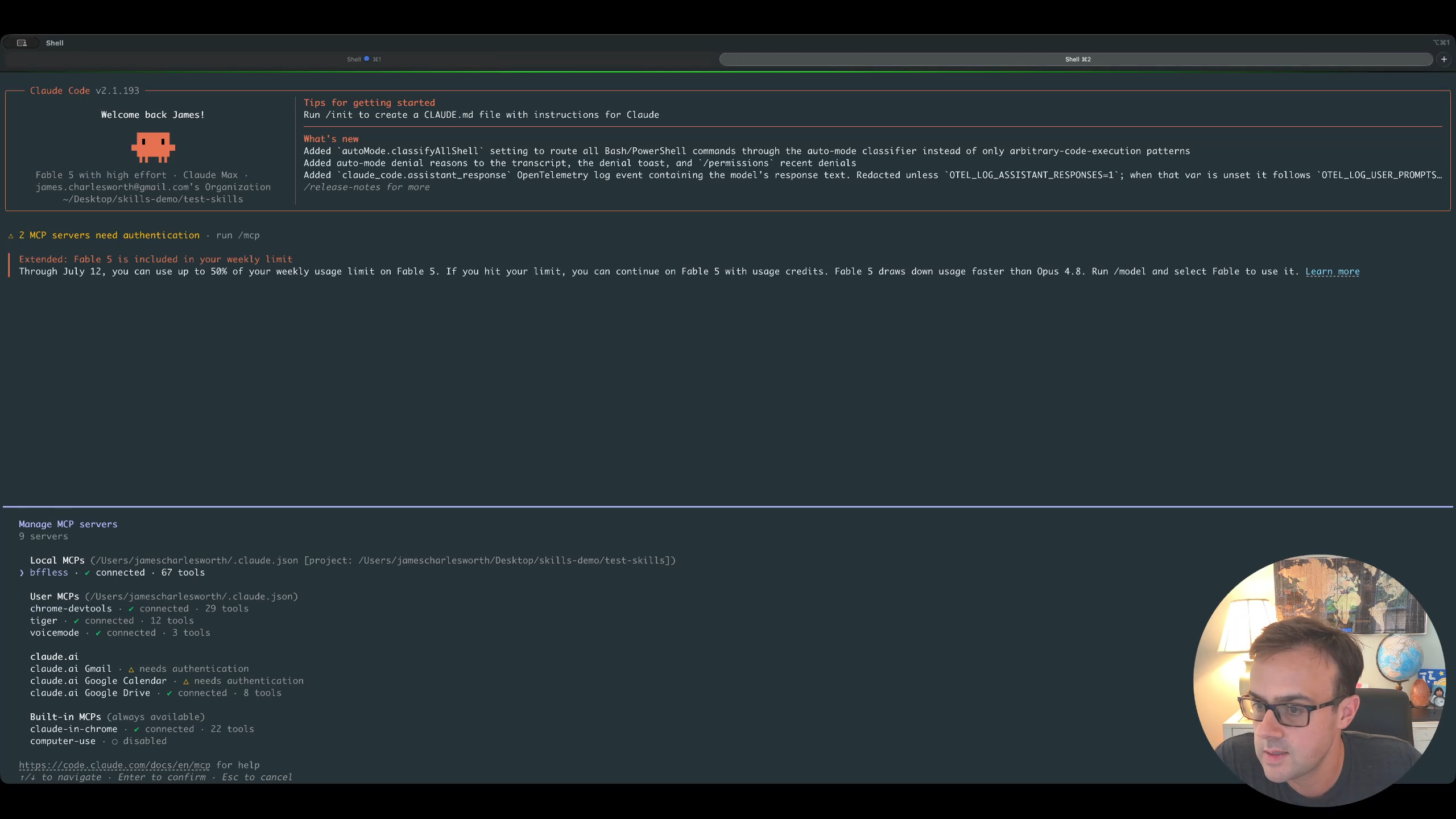
In the demo, the MCP server returned a single project — apps-test — which matched exactly what was visible in the BFFless admin. From here you could ask Claude to inspect deployments, update configurations, or perform any other operation the API exposes, all without leaving your editor.
Wrapping Up
Skills and the MCP server are two sides of the same coin: skills give your LLM the knowledge it needs about BFFless, while the MCP server gives it the ability to act on your backend. Together they create a workflow where you can ask Claude informed questions about BFFless concepts, generate branded AI content through pipelines with consistent styling, and manage your projects and deployments through natural-language commands.
Whether you are building software with BFFless as your hosting platform or using BFFless pipelines for AI-powered content generation, installing the skills and connecting the MCP server are small, one-time steps that pay dividends on every interaction.