A/B Testing
This recipe demonstrates how to run A/B tests on your static site using BFFless traffic splitting. You'll learn how to deploy multiple variants, configure traffic distribution, and access the variant information in your frontend code for analytics attribution.
Overview
BFFless makes A/B testing straightforward:
- Deploy each variant as a separate alias (e.g.,
landing-production,landing-variant-a,landing-variant-b) - Configure traffic splitting to distribute visitors across variants
- Read the variant cookie in your frontend to attribute conversions in your analytics tool
The __bffless_variant cookie tells your frontend which variant the user is seeing, allowing you to send this data to any analytics platform (Google Analytics, Pendo, Mixpanel, Amplitude, etc.).
Live Example
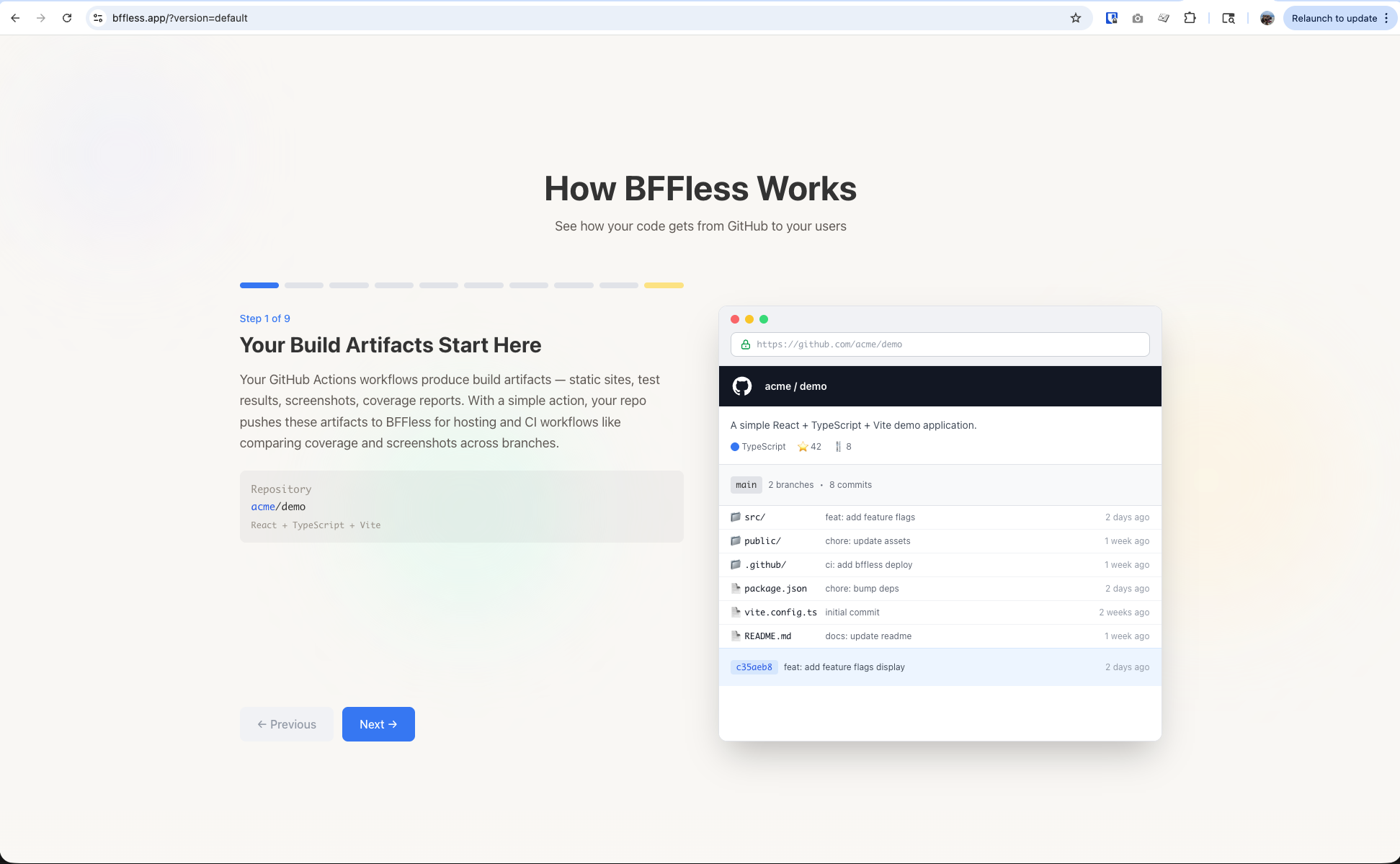
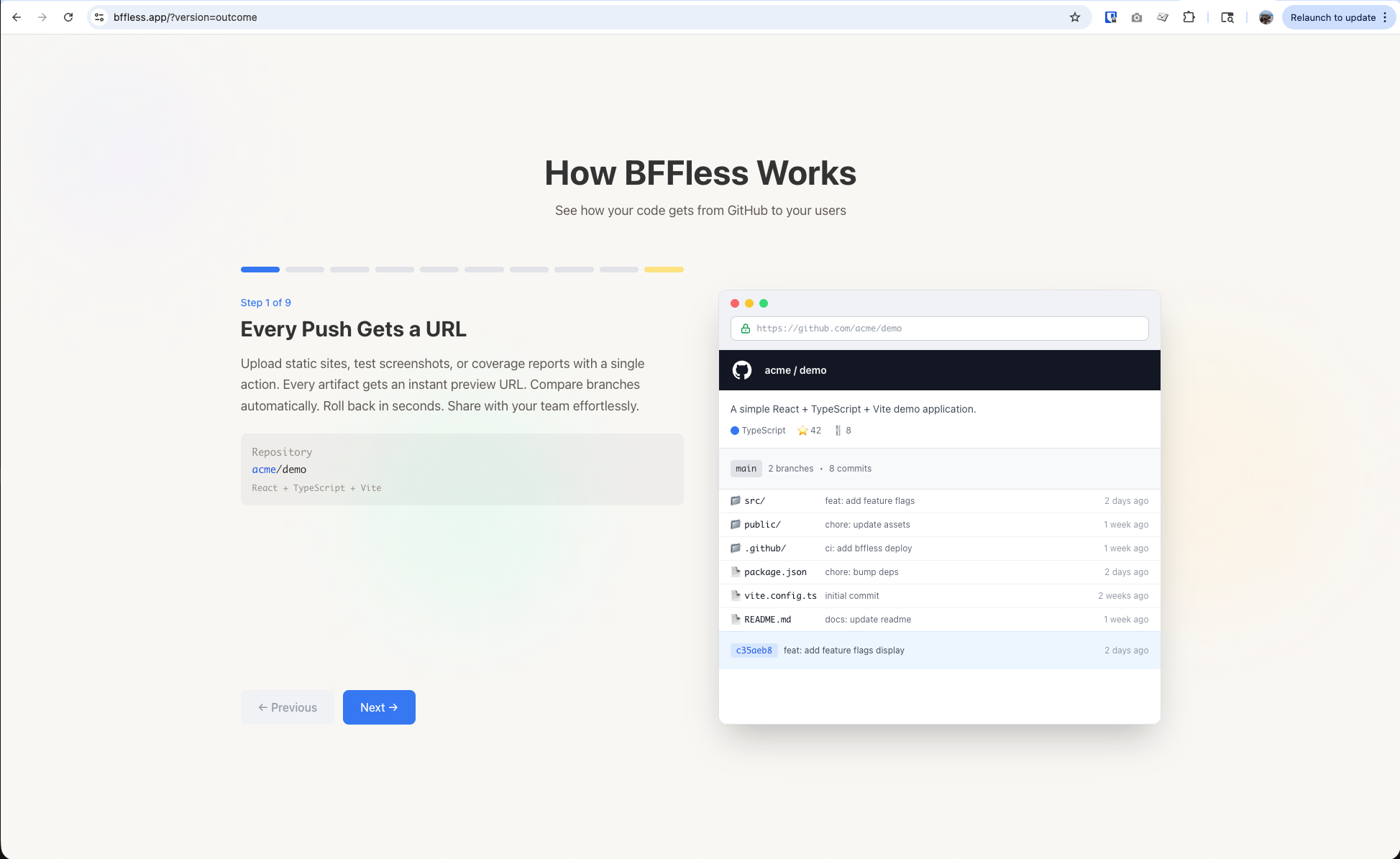
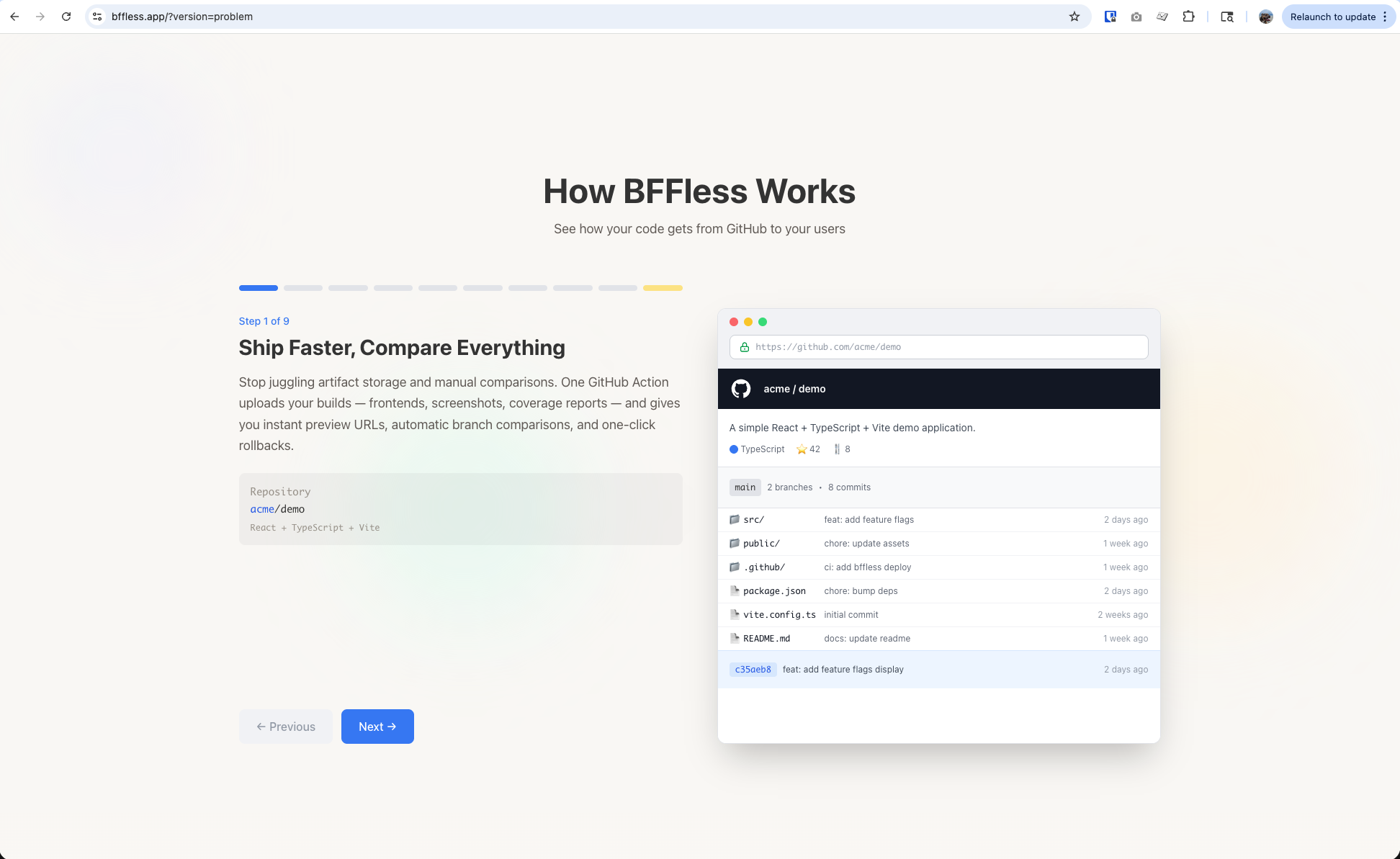
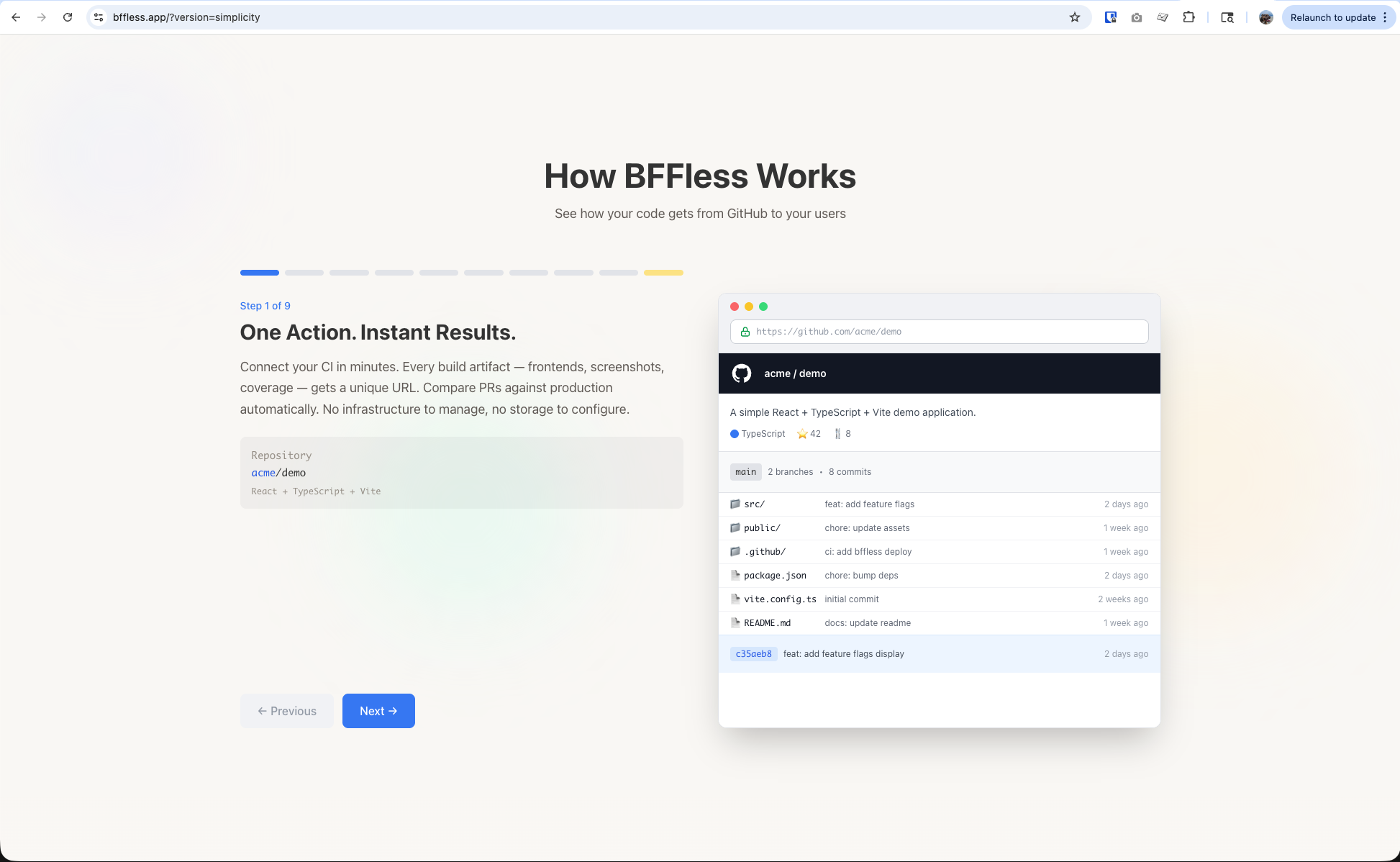
We're running an A/B test on bffless.app right now with 4 variants, each receiving 25% of traffic. When you visit the site normally, you're randomly assigned to one variant and will stay on that variant (sticky sessions).
The links below use the ?version= query parameter to force a specific variant — useful for sharing, debugging, or reviewing each version during development:
| Variant | Title | Link |
|---|---|---|
| Default | "Your Build Artifacts Start Here" | bffless.app/?version=default |
| Outcome | "Every Push Gets a URL" | bffless.app/?version=outcome |
| Problem | "Ship Faster, Compare Everything" | bffless.app/?version=problem |
| Simplicity | "One Action. Instant Results." | bffless.app/?version=simplicity |
Each variant has different headline copy. Open your browser DevTools and check the __bffless_variant cookie to see the variant name.
Step 1: Deploy Your Variants
First, deploy each variant of your site to a different alias. You can do this from separate branches or by building with different environment variables.
name: Deploy A/B Variants

on:
  push:
    branches: [main, variant-a, variant-b]

jobs:
  deploy:
    runs-on: ubuntu-latest
    steps:
      - uses: actions/checkout@v4

      - name: Build
        run: pnpm build

      - name: Deploy
        uses: bffless/upload-artifact@v1
        with:
          path: dist
          api-url: ${{ vars.BFFLESS_URL }}
          api-key: ${{ secrets.BFFLESS_API_KEY }}
          # Use branch name as alias suffix
          alias: landing-${{ github.ref_name }}
This creates aliases like landing-main, landing-variant-a, landing-variant-b.
Step 2: Configure Traffic Splitting
In the BFFless admin panel, navigate to your domain and configure traffic distribution:
- Enable Traffic Splitting for your domain
- Add each variant alias with a percentage weight
- Enable Sticky Sessions to keep users on the same variant
- Optionally add Traffic Rules to override with query parameters (useful for testing)
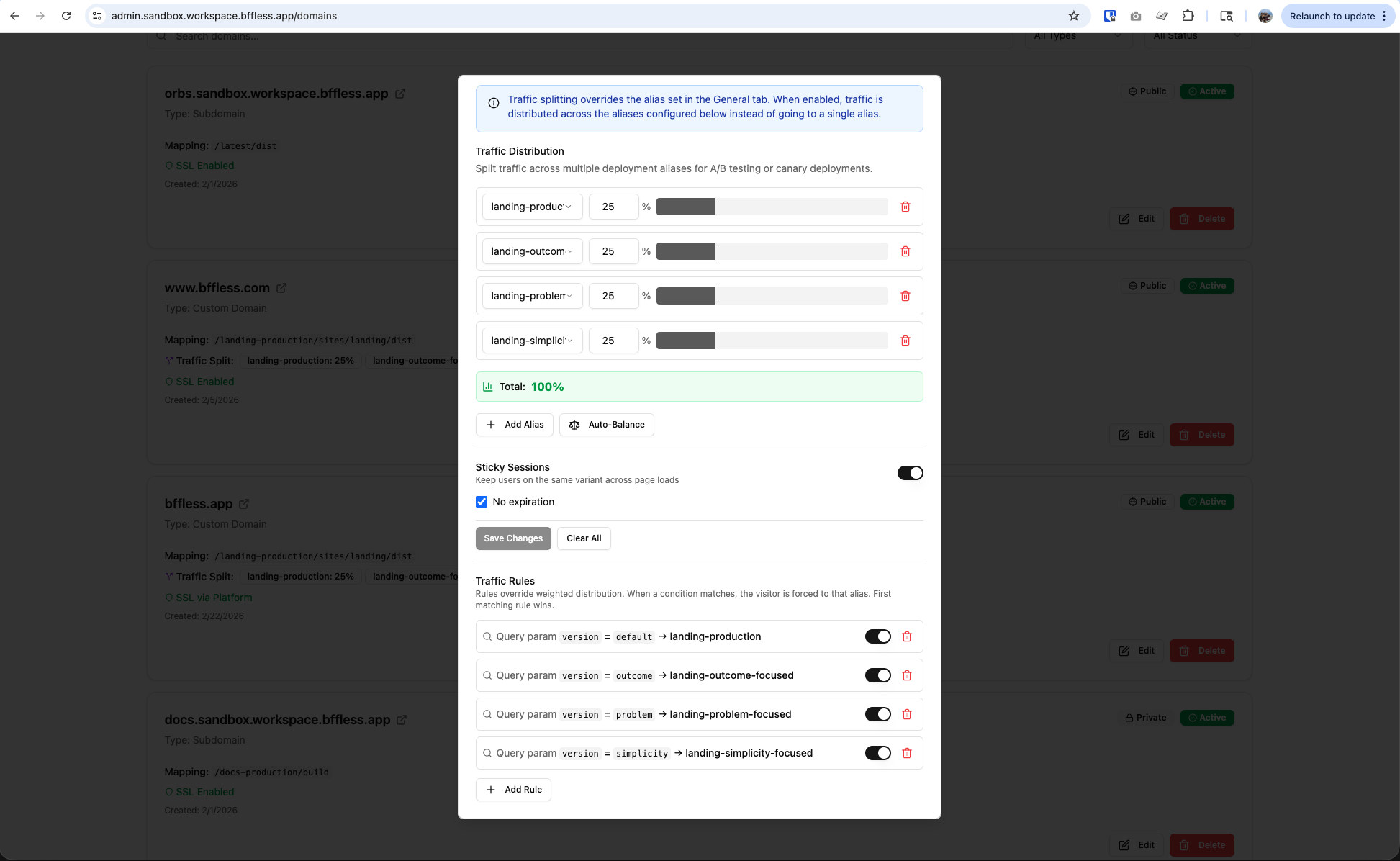
In this example:
- Traffic is split evenly (25% each) across 4 variants
- Query parameter rules let you force a specific variant with
?version=default,?version=outcome, etc. - Sticky sessions ensure users see the same variant on return visits
Step 3: Read the Variant Cookie
When a user visits your site, BFFless sets a __bffless_variant cookie with the alias name. Read this cookie in your frontend to identify which variant the user is seeing.
JavaScript Helper
/**
 * Get the current A/B test variant from the __bffless_variant cookie
 */
function getVariant() {
  const match = document.cookie.match(/(?:^|; )__bffless_variant=([^;]*)/);
  return match ? decodeURIComponent(match[1]) : null;
}

// Example usage
const variant = getVariant();
console.log('User is seeing variant:', variant);
// Output: "landing-outcome-focused"
React Hook
import { useState, useEffect } from 'react';

function getCookie(name: string): string | null {
  const match = document.cookie.match(new RegExp(`(?:^|; )${name}=([^;]*)`));
  return match ? decodeURIComponent(match[1]) : null;
}

export function useVariant() {
  const [variant, setVariant] = useState<string | null>(null);

  useEffect(() => {
    setVariant(getCookie('__bffless_variant'));
  }, []);

  return variant;
}
Step 4: Send to Analytics
Once you have the variant, send it to your analytics platform when users convert (sign up, purchase, etc.).
Google Analytics 4
function trackConversion(eventName) {
  const variant = getVariant();

  gtag('event', eventName, {
    variant: variant,
    // other event params...
  });
}

// On signup button click
document.querySelector('#signup-btn').addEventListener('click', () => {
  trackConversion('signup_click');
});
Pendo
function trackConversion(eventName, metadata = {}) {
  const variant = getVariant();

  if (window.pendo?.track) {
    pendo.track(eventName, {
      variant: variant,
      ...metadata,
    });
  }
}

// On signup button click
document.querySelector('#signup-btn').addEventListener('click', () => {
  trackConversion('signup_click', { source: 'hero_section' });
});
Mixpanel
function trackConversion(eventName, properties = {}) {
  const variant = getVariant();

  mixpanel.track(eventName, {
    variant: variant,
    ...properties,
  });
}
Generic Pattern
The pattern is the same for any analytics tool:
- Read
__bffless_variantcookie - Include
variantas a property/dimension in your conversion event - Segment by variant in your analytics dashboard to compare conversion rates
Tips
Testing Specific Variants
Use query parameter rules to force a specific variant during development or QA:
https://yoursite.com/?version=variant-a
This overrides the random assignment and sets the __bffless_variant cookie to the specified variant.
Sticky Sessions
Always enable sticky sessions for A/B tests. This ensures:
- Users see the same variant on return visits
- The experience is consistent within a session
- Your conversion attribution is accurate
Statistical Significance
Run your test until you have enough data for statistical significance. Tools like AB Test Calculator can help determine when you have conclusive results.
Clean Up
After concluding your test:
- Update traffic splitting to send 100% to the winning variant
- Optionally merge the winning variant code back to main
- Remove the losing variant aliases to free up storage
Cookie Details
| Property | Value |
|---|---|
| Name | __bffless_variant |
| Value | The alias name (e.g., landing-outcome-focused) |
| Path | / |
| Expiration | Session (or "No expiration" if configured) |
| HttpOnly | No (readable by JavaScript) |
The cookie is set by the BFFless backend when traffic splitting is enabled. It's not HttpOnly, so your frontend JavaScript can read it for analytics purposes.